> For the complete documentation index, see [llms.txt](https://help.blotato.com/llms.txt). Markdown versions of documentation pages are available by appending `.md` to page URLs; this page is available as [Markdown](https://help.blotato.com/web-app-features/videos/faqs.md).
# FAQs
Troubleshoot generated images, videos, carousels, templates, voiceovers, and credits.
## Find a visual workflow
| Task | Reference |
| ---------------------------------- | -------------------------------------------------------------------------- |
| Generate through an AI assistant | [Create and publish a visual](/agent-workflows/agent-workflows/visuals.md) |
| Choose template inputs | [Visual templates](/rest-api-reference/visuals.md) |
| Check a render or recover an error | [Visual status](/rest-api-reference/create-video/find-video.md) |
| Upload your own image or video | [Media uploads](/api-and-mcp-concepts/media-uploads-and-conversion.md) |
| Understand credit use | [Billing and credits](/settings/billing-and-credits.md) |
The FAQs below retain web-app and automation instructions. Follow the section for your workflow.
## How do I create a video? / How do I make a visual?
### Using Blotato Web App
1. Open [Videos > Create New Video](https://my.blotato.com/videos/new).
2. Select a template for your output.
3. Enter your prompt.
4. For manual control, open "Need more customization? Click to see advanced options".
5. Click "Generate Video".
6. Review the output before publishing.
Use "AI Video with AI Voice" for narration or "Instagram Carousel Slideshow" for a carousel. The in-app AI Agent creates text and images. It redirects video, carousel, and slideshow requests to templates.
For narration, follow [Make your first AI video](/web-app-features/videos/make-your-first-ai-video.md), including the "AI Voiceover" control and scene scripts.
## Templates
### Using Blotato Web App
Choose the template by name at [Videos > Create New Video](https://my.blotato.com/videos/new), not by its position in the list. Controls differ by template. For prompt-based generation with brand context, enable "Use brand kit". See [Brand Kit](/settings/brand-kit.md).
### Using Blotato API (n8n / Make.com / MCP)
1. Retrieve the template list and the selected template's input schema.
2. Submit the template ID and validated inputs.
3. Save the returned visual ID.
4. Check status and retrieve the finished media.
5. Publish only after generation succeeds and the requested publishing action is authorized.
Follow [Create and publish a visual](/agent-workflows/agent-workflows/visuals.md) for the exact sequence. A tutorial, old payload, or template name alone does not establish the current input schema.
## Where do I find my generated visuals?
All generated visuals appear in [Videos](https://my.blotato.com/videos), regardless of output type. This includes:
* Videos
* Images
* Carousels
* Infographics
* Slideshows
This applies whether you created the visual in the Blotato web app, through the API, or through MCP in Claude Code / VS Code.
This applies to template-generated visuals. Uploading an existing file using the [presigned upload endpoint](/rest-api-reference/publish-post/upload-media-v2-media.md) stores media in Blotato's CDN but does not create a Visual in the Videos tab. Do not infer library membership from the presence of a hosted URL.
Click on any visual to open it in the editor. Click the red trash icon to delete it.
***
## Why does my video have no audio or voiceover?
### Using Blotato Web App
1. For a new narrated video, select "AI Video with AI Voice" at [Videos > Create New Video](https://my.blotato.com/videos/new).
2. For an existing video, follow [AI Voiceover Captions](/web-app-features/videos/ai-voiceover-captions.md).
3. After adding or changing audio, export again before downloading or publishing.
Text on screen does not prove an audio track exists. Check the exported file, not only the editor preview.
### Using Blotato API (n8n / Make.com / MCP)
Select a template with narration support and inspect its current voice fields. Follow [Create and publish a visual](/agent-workflows/agent-workflows/visuals.md). Do not assume every template generates speech.
## Why is my video not animated? (it's just static images)
### Using Blotato Web App
A video containing still images is different from AI-generated motion. Open the video in the editor, select an image clip, and use "Create Animated Image" for a clip you want to animate. Review the selected model's credit cost before generation.
Follow [the animation steps](#how-do-you-animate-still-images-into-video-clips). Inspect the chosen template's controls rather than relying on its position in the template list.
### Using Blotato API (n8n / Make.com)
Read the selected template's schema for supported animation and model fields. Do not add a universal animation toggle to every template. Verify the generated output before publishing.
## Why did my video generation fail? (I have enough credits)
A `creation-from-template-failed` status establishes generation failure, not its cause. Source-media access, invalid template inputs, a model-provider error, and rendering problems require different recovery steps.
### Using Blotato Web App
1. Open the affected visual and retain its URL.
2. Read the displayed error.
3. Check the selected template and source media against the error.
4. If the cause is unclear or the same corrected attempt fails again, send support the visual URL, error, and attempted steps.
### Using Blotato API (n8n / Make.com)
1. Retrieve the visual with the saved ID.
2. Inspect `item.status` and `item.error`.
3. Check the matching request in the [Logs](https://my.blotato.com/logs).
4. Correct the identified cause before another generation request.
A browser opening an image does not prove Blotato's servers are allowed to fetch it. Use the [media checks](/api-and-mcp-concepts/media-uploads-and-conversion.md). Do not keep polling a terminal failure or recreate a paid job without authorization.
### How long does video generation take?
Generation time depends on the template, models, queue, and requested output. Elapsed time alone does not establish failure. Use [visual status checks](/rest-api-reference/create-video/find-video.md), keep the original visual ID, and set a waiting limit. Escalate stalled work with its ID and elapsed time instead of repeatedly creating replacements.
## My video failed with "Parse error: Unexpected token"
This error comes from the AI video creator in the Blotato web app. The AI writes the video layout code, and one generation produced code the renderer could not read. Your input, your JSON, and your API request are not the cause. This error does not affect the Blotato API.
1. Reword your request in the chat, or simplify it (fewer slides, shorter text), then send it again. Sending the same wording again tends to produce the same result.
2. Break a long request into two shorter ones.
3. If it repeats, contact support and paste the exact wording you sent.
***
## Why do I get an "insufficient-credits" error when I still have credits?
Before generation starts, Blotato adds up the credit cost of your entire video -- every scene, using the image and video models you selected -- and compares the total to your balance. If the estimated total is higher than your balance, generation stops with `insufficient-credits`, even if your balance looks large. No credits are deducted, because credits are only charged on successful generation.
Premium video models make this common. For example, VEO3 costs 1,250 credits per video clip, so a 3-scene VEO3 video needs 3,750 credits up front. A balance of 2,000+ credits is not enough, while the same video with a cheaper model succeeds. See the full price list at [AI Video Credits](/web-app-features/videos/ai-video-credits.md#what-is-the-credit-cost-per-ai-image-or-video-model).
What this looks like:
* Via API or MCP, the video status becomes `insufficient-credits` and no credits are deducted.
* In the web app, you see a "Not enough credits" notification and the video is saved as a draft without AI-generated visuals (status stays at `script-ready`).
To fix it, do one of these:
1. Switch to a cheaper animation model in the template's advanced options (for example, `framepack` at 55 credits instead of `veo2` at 835), or turn off scene animation
2. Reduce the number of scenes
3. Purchase more credits in [Settings > Billing](https://my.blotato.com/settings/billing). Via the API, buy credits with `POST /v2/credits` -- see the [Credits API](/rest-api-reference/credits.md)
***
## Why did my credits run out faster than the documented rates? (credit consumption discrepancy)
If your credits ran out after fewer videos than you calculated -- for example, you planned 25 videos from your balance and only 5 completed -- check these billing rules before assuming you were overcharged:
* Credits are charged only on successful image or video generation. Videos stuck as drafts at `script-ready` with empty scenes consumed nothing, and they are fully recoverable: open each video, click the pencil icon on an empty scene, generate or upload the image, then export. Your scripts are saved. See [My video was generated without images](#my-video-was-generated-without-images-blank-scenes-saved-as-a-draft).
* AI voiceovers are free. There is no separate charge for rendering or exporting a video.
* The only credit costs in the video pipeline are the AI image and video generation models themselves, charged per scene. Check which image model AND which video (animation) model each scene used against the price list at [AI Video Credits](/web-app-features/videos/ai-video-credits.md#what-is-the-credit-cost-per-ai-image-or-video-model) -- video models cost far more per scene than image models, and animating still images multiplies the cost of an otherwise cheap video.
* Regenerating a scene charges again for each successful generation, so several retries on the same scene add up.
If the numbers still do not match the documented rates after checking each scene's models, ask in the in-app support chat with your account email and the video names. The team reviews the account's actual generation history and adds back credits when something misfired.
***
## My video was generated without images (blank scenes / saved as a draft)
If your video comes back as a draft with empty scenes and no images, the image generation step did not complete. Common causes are a credit shortfall at generation time (see the insufficient-credits FAQ above) or a temporary failure with the image model provider.
You do not need to re-run the whole generation:
1. Open the video from [Videos](https://my.blotato.com/videos)
2. Click the pencil (edit) icon on a scene that has no image
3. Add an image for that scene: upload your own or generate a new one
4. Repeat for each empty scene, then export
If scenes repeatedly come back without images on retry, ask in the support chat so the team investigates the failed generations.
***
## My video is stuck on "Rendering" / my download or export never finishes
Generation, Export, and social publishing are separate operations. Exporting existing media does not consume generation credits. A stalled export alone is not a reason to purchase credits or regenerate scenes.
### Using Blotato Web App
1. Copy the affected video's URL.
2. Check whether the pending operation is scene generation or Export.
3. Read the export status and any displayed error.
4. Reopen the video from [Videos](https://my.blotato.com/videos) and check whether the export completed.
5. If it remains stuck, send support the URL, screenshot, elapsed time, and exact action you took.
For a generation error naming insufficient credits, follow [the full-job credit check](#why-do-i-get-an-insufficient-credits-error-when-i-still-have-credits). For the editor controls, follow [Edit and export](/web-app-features/videos/edit-and-export.md).
### Using Blotato API (n8n / Make.com)
Retrieve the saved visual ID and inspect its status and error before retrying. Follow [visual status checks](/rest-api-reference/create-video/find-video.md). Do not submit a replacement generation request because polling took longer than expected.
***
## My video export keeps failing ("Export Failed" / rendering error) even after retrying
An Export Failed message does not establish which scene failed or prove the media is corrupted. It is not the same as a failed Instagram, TikTok, or other social publication.
### Using Blotato Web App
1. Keep the original video and copy its URL.
2. Capture the export error.
3. Check whether a specific missing or inaccessible asset is named.
4. Correct only the identified problem before exporting again.
5. If the cause is unclear or the same corrected export fails, contact support with the URL and error.
Do not regenerate paid scenes as a default export repair. Each successful image or video regeneration consumes credits. See [Edit and export](/web-app-features/videos/edit-and-export.md).
### Using Blotato API (n8n / Make.com)
Inspect the visual's status and error using [Find visual](/rest-api-reference/create-video/find-video.md). An accepted request does not prove the output completed. Keep its ID for support and do not poll a terminal failure indefinitely.
***
## How do I control what the AI Agent generates?
### Using Blotato Web App
The in-app AI Agent creates text and images. For video, carousel, or slideshow generation, use [Videos > Create New Video](https://my.blotato.com/videos/new).
1. Select the template for your output.
2. Describe the topic, scene content, and requested style in the prompt.
3. Enable "Use brand kit" if you want configured brand context applied to prompt-based generation.
4. Review the output and edit it before publishing.
See [Brand Kit](/settings/brand-kit.md) and [Make your first AI video](/web-app-features/videos/make-your-first-ai-video.md).
### Using Blotato API (n8n / Make.com)
External assistants use the selected template's current input schema and the [visual generation workflow](/agent-workflows/agent-workflows/visuals.md). The in-app limitation does not remove external MCP or REST visual generation.
## Why didn't my video use my Brand Kit? (colors, logo, style ignored)
### Using Blotato Web App
1. Configure a brand in [Settings > My Brand](https://my.blotato.com/settings/brand).
2. Open a template at [Videos > Create New Video](https://my.blotato.com/videos/new).
3. Enter a prompt.
4. Enable "Use brand kit".
5. Review the output before publishing.
The toggle starts off. Brand context is applied during prompt-based template input generation, not retroactively to an existing video. It does not guarantee placement of a logo in every scene.
### Using Blotato API (n8n / Make.com)
For REST, provide a nonempty `prompt` and set `useBrandKit: true`. The default is `false`. For MCP or an integration node, inspect the exposed fields before assuming the same controls exist.
See [Brand Kit](/settings/brand-kit.md) for brand selection and fallback instructions.
## How do I make higher quality videos?
Choose a better image or video model. The default model is the cheapest one, so you don't accidentally burn credits -- it is not the highest quality option.
### Using Blotato Web App
1. Open your template in [Videos](https://my.blotato.com/videos)
2. Click "Advanced Settings" under the Generate Video button
3. Select a higher-quality image or video model (higher-quality models cost more credits -- see [AI Video Credits](/web-app-features/videos/ai-video-credits.md#what-is-the-credit-cost-per-ai-image-or-video-model))
4. For prompt-based generation with brand context, enable "Use brand kit". See [Brand Kit](/settings/brand-kit.md).
### Using Blotato API (n8n / Make.com)
1. Set the `textToImageModel` or video model parameter in your Create Visual request to a higher-quality model
2. Check each template's supported model fields in [Visual Templates](/rest-api-reference/visuals.md)
See: [Create Visual](/rest-api-reference/create-video.md)
***
## How do you animate still images into video clips?
**If you're using the Blotato web app to make videos:**
* open your draft video in the editor
* click on a GREEN image
* on the left side, click "Create Animated Image" purple button
* select image-to-video AI model
* click "Generate"
* wait \~10 minutes
:bulb:PRO tip: you can animate multiple images simultaneously, so that you shorten the length of time you have to wait.
**If you're using the Blotato API to make videos:**
When you call blotato's Create Video API endpoint, you can optionally animate the first image in your video, or animate all the images in your video.
Check out the API docs here: [Create visual reference](/rest-api-reference/create-video.md)
However, keep in mind animating videos can cost quite a bit of credits, so I recommend using Framepack because it's the cheapest and works decently.
***
## How do you repurpose a video into a new version?
In the Latest Videos screen, click "Edit" on a video and it returns to the editor screen, where you can make some changes and re-export a new video.
\

***
## My edits (music, voiceover, text, captions) are missing from the published post or download
Your video edits do not carry into a post or a downloaded MP4 until you re-export the video. Editing in the video editor changes the draft, but the post and the Download button still use the last exported version.
### Using Blotato Web App
1. Open the existing visual and confirm the edits.
2. Set Slideshow to the intended output format before clicking Export.
3. Wait for the new export to succeed.
4. Download the new file, or use Create Post to open a draft in Remix.
5. Check any existing scheduled or published post before submitting a replacement. A new export does not update those posts automatically.
### Using Blotato API (n8n / Make.com)
Use the completed visual's current `mediaUrl` or `imageUrls`, not an earlier result. Inspect the existing publishing submission before sending another. See [Edit, mute, and export](/web-app-features/videos/edit-and-export.md).
***
## How do I save a video?
### Using Blotato Web App
Open the existing visual in [Videos](https://my.blotato.com/videos). Saving editor changes and downloading an exported file are different operations.
1. Turn Slideshow off for an MP4.
2. Click Export.
3. Wait for the export to succeed.
4. Click Download.
5. Confirm the file reached your device. If the browser opens the video in a tab, use its download or save control.
### Using Blotato API (n8n / Make.com)
Retrieve the existing visual by ID. Use the `mediaUrl` or `imageUrls` from its completed result. Do not create a new visual merely to retrieve the previous output. See [Find Video](/rest-api-reference/create-video/find-video.md).
***
## I created a video but don't know how to download or post it
### Using Blotato Web App
1. Choose the output format with Slideshow before clicking Export.
2. Wait for a successful export.
3. Choose Download for a file or Create Post for a draft in Remix.
4. Review the draft's content and destinations before a separate publishing or scheduling action.
Create Post does not publish. If export controls remain unavailable, inspect export status and unfinished media rather than generating the visual again. See [Edit, mute, and export](/web-app-features/videos/edit-and-export.md).
### Using Blotato API (n8n / Make.com)
Retrieve the completed visual, then pass its output URLs to a separate Publish Post request only when the user requests publishing. Follow [Create a visual and retrieve its output](/agent-workflows/agent-workflows/visuals.md).
***
## How do I create a product video with my own images?
If you have your own photos (product shots, UGC images, lifestyle photos) and want your product to appear in the generated video, follow the steps below. Uploading product photos to Brand Visuals in your Brand Kit is not enough by itself -- Brand Visuals guide the AI's style, but they do not place your product photos into the video. To get your product in the video, upload your images directly into a template:
### Using Blotato Web App
1. Go to [Videos > Create New Video](https://my.blotato.com/videos/new)
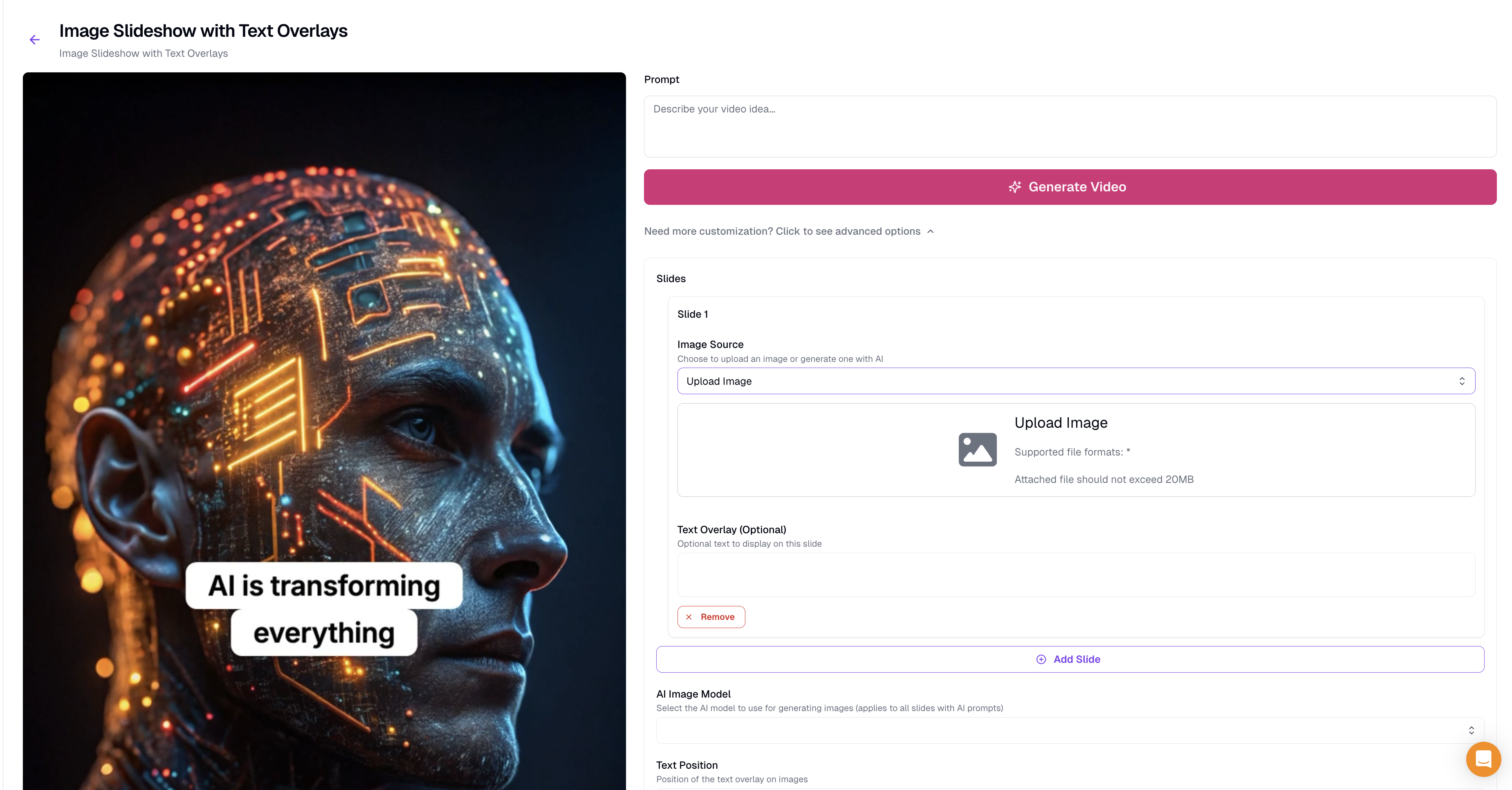
2. Select a template that supports your own images (e.g., "Image Slideshow with Text Overlays" or "Video of Images and Text with Minimal Style")
3. Click "Need more customization? Click to see advanced options"
4. For each slide, choose "Upload Image" from the Image Source dropdown
5. Upload your product or UGC image (max 20MB)
6. Add text overlay if needed
7. Click "+ Add Slide" to add more slides
8. Click "Generate Video" when done
### Using Blotato API (n8n / Make.com)
1. Use the Blotato CREATE VISUAL node
2. Select a template that accepts image URLs (e.g., "Video of Images and Text with Minimal Style")
3. Pass your image URLs in the `scenes[].mediaSource` field
4. Set `render: true` to generate the final video
See: [API Create Visual](/rest-api-reference/create-video.md)
There is no upload button on the template selection screen itself. Open the template's advanced options, or click **Generate Video** and replace images inside the video editor. To attach your own photos to a social post, click **Photo / Video** on a post in the [AI Agent](https://my.blotato.com/agent).
***
## How do I use my own video footage (B-roll) in Blotato?
### Using Blotato Web App
1. Go to [Videos > Create New Video](https://my.blotato.com/videos/new)
2. Select **Combine Clips and Apply Basic Edits** from the template list
3. Click **Advanced Settings** under the Generate Video button to access all clip inputs
4. Add your video clip URLs or upload your footage for each clip slot
5. Configure titles, captions, music, or transitions as needed
6. Click **Generate Video**
### Using Blotato API (n8n / Make.com / MCP)
Pass your video clip URLs in the `videoClips` array. To explore all customization options, point your AI agent at the visuals help docs:
[Visual templates](/rest-api-reference/visuals.md)
See: [Combine Clips and Apply Basic Edits](/rest-api-reference/visuals/c306ae43-1dcc-4f45-ac2b-88e75430ffd8.md)
***
## I have my own video clips and images. How do I make a video with music and voiceover?
Pick the path that matches what you already have, then add audio in the editor. In short: open the right template, click **Advanced Settings** and set each clip or slide source to **Upload** to add your own files, then in the editor add music via **Audio** and add AI voiceover by clicking the **blue caption track** and **Generate Voiceover**.
### Using Blotato Web App
1. Go to [Videos > Create New Video](https://my.blotato.com/videos/new)
2. If you have **video clips** (your own footage or B-roll), pick **Combine Clips and Apply Basic Edits**. If you have **images only** (photos or slides), pick **Image Slideshow with Text Overlays** or **Video of Images and Text with Minimal Style**.
3. Click **Advanced Settings** (or "Need more customization? Click to see advanced options")
4. For each clip or slide, set the source to **Upload** and add your own footage or image (max 20MB each)
5. Add text overlays per slide if you want, and click **+ Add Slide** or **+ Add Clip** until every scene is in
6. Click **Generate Video**, then open the finished video in the editor
7. To add **music**, click **Audio** in the left sidebar and upload your music file
8. To add **AI voiceover**, click the blue caption track (or add one via **Caption** in the left sidebar), then click **Generate Voiceover**
### Using Blotato API (n8n / Make.com / MCP)
1. Use the Blotato CREATE VISUAL node with **Combine Clips and Apply Basic Edits**
2. Pass your video clip URLs in `videoClips` and your image URLs in the slide/scene fields
3. Pass an audio URL in the template's audio field to add music or a voiceover track
See: [Combine Clips and Apply Basic Edits](/rest-api-reference/visuals/c306ae43-1dcc-4f45-ac2b-88e75430ffd8.md) and [AI Voiceover Captions](/web-app-features/videos/ai-voiceover-captions.md)
***
## How do you clip long form videos into short clips?
Blotato is not designed to clip longform YouTube videos into short clips. I use [Opus Clip](https://www.opus.pro/) for that. [Klap](https://klap.app/) is another option with an affordable API.
I haven't achieved great results with fully automated clipping for educational content and often need to edit the clips to ensure the educational content is clear and quality.
***
## How do you add transitions in between video shots and photos?
### Default fade-in transition (black screen at start)
When you export a video, the default transition is "fade in", which shows a brief black screen at the start. To remove it:
1. Open the video in the editor
2. Click on an image or video clip
3. Click SETTINGS on the left sidebar
4. Change the Transition Effect from "Fade" to "None"
If you are using the API (n8n, Make.com, REST API, or MCP), set `transition: "none"` in your template inputs. Valid values: `none`, `fade`, `slide`, `zoom`.
### Removing gaps between clips
To remove empty space between video clips and photos, hover over the gap between clips. An "X" appears -- click it to snap the clips together.
### Adding animated transitions
To add animated transitions between shots: click on an image, then click SETTINGS. Transition and animation options appear on the left sidebar.
***
## Where is the "faceless motivation" prompt from Youtube tutorial?
I haven't added the prompt to Blotato users yet, but you can copy it directly and add it to your Blotato prompts library.
```
Complete the following tasks.
1. Choose the most scroll-stopping controversial quote from this list. Output only the quote, with no extra formatting, no quotes, no asterisks, no author.
2. Write a 3-sentence motivational video script, expanding on the quote's main theme. Your writing style is spartan, intellectual, and 5th grade reading level. NEVER use adjectives or adverbs.
# INPUT Use the following information sources: {{ source }}
```
***
## How do you make AI videos with consistent characters?
### Using Blotato Web App
1. Open [Videos > Create New Video](https://my.blotato.com/videos/new).
2. Select "AI Selfie Talking Video with Consistent Character".
3. Provide the character description or image reference using the template's controls.
4. Supply scene descriptions and narration.
5. Generate and review the output.
A character reference is an input, not a guarantee of identical identity or appearance in every generated frame.
### Using Blotato API (n8n / Make.com)
Use the [AI Selfie Talking Video template](/rest-api-reference/visuals/57f5a565-fd17-458b-be43-4a2d8ccaca75.md). Inspect its current `characterDescription`, `scenes`, style, and aspect-ratio inputs. Follow [generation and completion checks](/agent-workflows/agent-workflows/visuals.md).
## How do you create a transformation video between 2 images, with a start and end frame?
To create a morphing effect between 2 images:
* click on the image that will be your starting image
* click "Create Animated Image" in the left panel
* select the model "Kling 1.5 Pro Image to Video"
* input a prompt describing the transformation
* select your ending image
* Click "Generate"
***
## What type of AI videos does Blotato NOT generate?
Distinguish template-based character generation from a trained clone of a real person. Do not infer support for face training, voice cloning, exact identity reproduction, or arbitrary lip-sync requests from an "avatar" template name.
Blotato lists [AI Selfie Talking Video with Consistent Character](/rest-api-reference/visuals/57f5a565-fd17-458b-be43-4a2d8ccaca75.md), which accepts a character description or image reference, scenes, and narration. [AI Avatar with AI Generated B-roll](/rest-api-reference/visuals/7c26a1cd-d5b3-42da-9c73-2413333873b3.md) instead requires an existing talking-head video.
For website creation, select the relevant template at [Videos > Create New Video](https://my.blotato.com/videos/new). For the REST API, MCP, or an integration node, retrieve its current schema before promising the requested output.
## Does Blotato offer AI avatars or AI clones?
### Using Blotato Web App
For template-based character video, select "AI Selfie Talking Video with Consistent Character" at [Videos > Create New Video](https://my.blotato.com/videos/new). For an existing avatar or camera recording, use "AI Avatar with AI Generated B-roll".
Neither template listing establishes a face-training or voice-cloning service. If the customer means a clone of their own face and voice, clarify the required capability instead of promising it from the word "avatar".
### Using Blotato API (n8n / Make.com)
Use the [selfie character template](/rest-api-reference/visuals/57f5a565-fd17-458b-be43-4a2d8ccaca75.md) or [existing-avatar B-roll template](/rest-api-reference/visuals/7c26a1cd-d5b3-42da-9c73-2413333873b3.md) according to the input available. A video created in another service is existing media for Blotato's [publish workflow](/agent-workflows/agent-workflows/publish.md).
## Can Blotato add animations, titles, or captions on top of my own talking-head video?
This workflow starts with your existing camera, screen, or avatar video. It is separate from the [generated-character template](/rest-api-reference/visuals/57f5a565-fd17-458b-be43-4a2d8ccaca75.md). Select a template whose inputs support the requested edits rather than assuming every title, animation, or overlay is available.
### Using Blotato Web App
1. Go to [Videos > Create New Video](https://my.blotato.com/videos/new)
2. Choose the "Combine Existing Clips" template -- it adds a stylized title and animated captions on top of your existing video, layering cleanly over your talking head and background footage
3. Upload or link your base video
4. Add your title text and caption settings
5. Click "Generate Video"
The "Avatar Video with B-Roll" template is an alternative: it auto-generates b-roll visuals from your script and overlays them during your video.
### Using Blotato API (n8n / Make.com / MCP)
1. Add a Blotato node and select "Visual" > "Create"
2. Choose the "Combine Existing Clips" template (or "Avatar video with b-roll")
3. Pass your video URL, title text, and caption settings
4. Execute to generate the enhanced video
See: [Create Visual API](/rest-api-reference/create-video.md)
***
## How do I make HeyGen avatar videos look better?
If you're using HeyGen to create AI avatar videos and want to enhance them beyond HeyGen's default style, Blotato offers two templates in the CREATE VISUAL node:
### Option 1: Combine Existing Clips
This template adds a stylized title and captions to your HeyGen video:
1. Add a Blotato node and select "Visual" > "Create"
2. Choose the "Combine Existing Clips" template
3. Pass your HeyGen video URL
4. Add your title text and caption settings
5. Execute to generate an enhanced video
This template also accepts an optional audio/music URL. You can use it to combine any video with a custom voiceover (e.g., audio generated from the [ElevenLabs API](https://elevenlabs.io/docs/api-reference)) or background music.
### Option 2: Avatar Video with B-Roll
This template generates relevant b-roll images based on your avatar's script and overlays them during your video:
1. Add a Blotato node and select "Visual" > "Create"
2. Choose the "Avatar video with b-roll" template
3. Pass your HeyGen video URL and script
4. Execute to generate a video with AI-generated b-roll visuals
Both templates are available in n8n and Make.com using the official Blotato nodes.
***
## How do I label posts as AI-generated?
Blotato exposes disclosure fields for YouTube and TikTok. There is no Facebook or Instagram disclosure field in Blotato's publish schema.
1. For TikTok REST requests, set `post.target.isAiGenerated`. In MCP, use the top-level `isAiGenerated` argument.
2. For YouTube REST requests, set `post.target.containsSyntheticMedia`. In MCP, use the top-level `containsSyntheticMedia` argument.
3. Follow the platform's disclosure rules when choosing the value. See the [TikTok publishing guide](/platform-publishing/platforms/tiktok.md) and [YouTube publishing guide](/platform-publishing/platforms/youtube.md).
A faceless format does not establish whether disclosure is required. For example, YouTube's rules include AI-generated realistic scenes, not only human likeness. Review [YouTube's disclosure requirements](https://support.google.com/youtube/answer/14328491) and [TikTok's AI-generated content guidance](https://support.tiktok.com/en/using-tiktok/creating-videos/ai-generated-content) for the content you publish.
***
## My video has captions but no sound / is silent
If you already generated the AI voiceover in the editor, the most common cause is that the video was not re-exported. Blotato plays and downloads the last exported version, so a voiceover added after that export does not appear in the file.
1. Open the video in the editor
2. Click "Export" in the top right corner to re-export the video with the voiceover
3. Wait for the export to finish
4. Click "Download" to save the MP4, or "Create Post" to publish it
If the video has no voiceover yet, add one first:
1. Open the video in the editor
2. Click the BLUE caption track
3. Click "Generate Voiceover" to create the AI voice
4. After the voiceover generates, click on your image/video track
5. Click "Align to Captions" to sync your visuals with the audio
6. Click "Export" in the top right corner, then "Download" or "Create Post"
To create a new video with AI voice synced to each scene:
1. Go to [Videos > Create New Video](https://my.blotato.com/videos/new)
2. Select the "AI Video with AI Voice" template (2nd option)
3. Enter your prompt and click "Generate Video" (a sample output generates without filling in anything)
For detailed instructions, see: [AI Voiceover Captions](/web-app-features/videos/ai-voiceover-captions.md)
***
## I can't find the "Align to Captions" button
The "Align to Captions" button only appears after both of these are true:
1. You generated an AI voiceover. Click the BLUE caption track, then click "Generate Voiceover". Without a caption track, there is nothing to align to.
2. You selected a clip. Click a GREEN clip (image) or PURPLE clip (video) in the timeline.
Once both are done, the "Align to Captions" button appears in the row of buttons next to the Play button. You can also press the "a" key as a shortcut.
If you still don't see it, switch to a desktop browser. The editor's alignment controls are not available on mobile.
***
## I uploaded my own voiceover but "Align to Captions" does not work
"Align to Captions" syncs your clips to the caption track Blotato generates together with the AI voiceover. An audio file you upload through **Audio** in the left sidebar is treated as custom audio (like music) -- it does not create a caption track, so there is nothing to align your clips to.
To align clips with a voiceover:
1. Use the "AI Video with AI Voice" template so the voiceover and captions generate together (recommended), or in an existing video click the BLUE caption track, enter your script, and click **Generate Voiceover**
2. Select a GREEN image clip or PURPLE video clip
3. Click **Align to Captions** (or press the "a" key)
See: [AI Voiceover Captions](/web-app-features/videos/ai-voiceover-captions.md)
***
## How do you make "evolution transformation" type of videos?
To make "evolution transformation" videos like [this](https://www.tiktok.com/@timeportals/video/7485812120609738006?q=genghis%20khan\&t=1744741824792):
* click on a GREEN image
* select the image-to-video model Kling v1.6
* use the "End Image" feature.
The start/end image feature enables smooth transformations.
***
## Which platforms support custom thumbnails or cover images?
Custom thumbnail and cover support is set by each platform, not by Blotato:
* **YouTube:** Yes. Upload a custom thumbnail image (max 2MB, JPEG or PNG, 1280x720). Requires a verified YouTube account.
* **TikTok:** Yes. Set a video cover frame by timestamp, or a slideshow cover by image index.
* **Instagram:** Reels only. Add a cover image (max 8MB) on a Reel. Instagram feed photos and feed videos do not support a custom thumbnail.
* **Facebook:** No. Facebook does not support custom cover images for video posts through any third-party API.
* **X, LinkedIn, Threads, Bluesky, Pinterest:** No custom thumbnail field.
So if a custom thumbnail does not apply on Instagram or Facebook, that is expected: Facebook has no support, and Instagram supports covers only on Reels.
## How do I set a custom cover image for my video?
### Using Blotato Web App
Instagram Reels support custom cover images:
1. On the publish screen, expand the advanced options
2. Add a public image URL in the "Cover Image" field (max 8MB)
### Using n8n / Make.com
1. In the Blotato Publish node, expand the advanced options
2. Add your cover image URL in the "Cover Image URL" field
### Using REST API / MCP
Add `coverImageUrl` to the `target` object in your publish request:
```json
"target": {
"targetType": "instagram",
"mediaType": "reel",
"coverImageUrl": "https://example.com/cover.jpg"
}
```
If you are using MCP, tell your AI tool: "Post this video to Instagram as a reel with this cover image: \[URL]". The AI tool sets the `coverImageUrl` field for you.
See: [Publish Post API Reference](/rest-api-reference/publish-post.md)
### Other platforms
* **TikTok**: See [TikTok Custom Thumbnails](/social-accounts-and-platform-faqs/tiktok/faqs.md#how-do-i-set-a-custom-thumbnail-for-tiktok)
* **Facebook**: Facebook does not support custom cover images for video posts via API.
* **YouTube**: See [YouTube Custom Thumbnails](/social-accounts-and-platform-faqs/youtube/faqs.md#how-can-i-select-the-thumbnail-of-my-youtube-video)
***
## How do I view or edit the prompt used to generate a video, image, or scene?
1. Open the video in the editor
2. Click the GREEN clip (image) or PURPLE clip (video) in the timeline
3. The prompt appears in the left sidebar, along with style and settings
4. Edit the prompt, then click Regenerate to create a new version
The prompt lives at the scene level. There is no separate "whole-video prompt" view inside a finished video. To change the entire video, open it from [Videos](https://my.blotato.com/videos), edit the scenes you want, and click Export again.
***
## How do I edit a scene in an existing video?
1. Open the video in the video editor
2. Click the GREEN clip (image) or PURPLE clip (video) in the timeline at the bottom
3. The editing panel opens on the left side of the screen
4. Update the prompt, style, or settings for that scene
5. Click Regenerate to create a new version
The editing panel only appears on desktop. If you are on a mobile device, switch to a desktop browser to edit individual scenes.
***
## How do I preview my video or carousel in the editor?
Once your draft is open in the video editor, you have three ways to see it larger:
1. **Play the full video/carousel:** Click the **Play button (▶)** at the bottom of the canvas. Blotato runs through every scene at full canvas size.
2. **Enlarge one scene:** Click the scene in the timeline at the bottom. The main canvas shows only that scene at full size, so you can read the text on carousel cards or check a specific frame.
3. **Zoom in:** Use the **zoom controls** in the top-right of the canvas to zoom in on details, useful for reading small text on Tweet Card Carousels or checking logo placement.
To **edit the wording** on a text overlay or carousel card, click directly on the text in the canvas. A text panel opens on the left where you can rewrite the text, change font size, or restyle it.
The video editor works best on desktop or tablet. Mobile support is limited.
***
## How do you change aspect ratio?
In the upper-right corner of the video editor, click the "Settings" icon.
Then select one of the Aspect Ratio options.
The default is 9:16 for TikTok, Youtube Shorts, and Instagram Reels.
16:9 is required for long-form Youtube videos.

***
## How do I delete a video?
Go to [Videos](https://my.blotato.com/videos) and click the red trash icon on the video you want to delete.
***
## When you export a video, can you go back and edit it later?
Yes, when you click "Export", Blotato will render your video as is.
But you can always make additional edits and re-export it (re-render).
***
## How long does it take to export a video?
A 60-second video can take 5-10 minutes to export. All your work is always saved, so when you start exporting, even if you exit Blotato, you can go back later to grab the finished exported video.
***
## How do I view my videos in full screen?
To view a video you created in full screen:
1. Go to [Videos](https://my.blotato.com/videos)
2. Find your video in the list
3. Click on the video thumbnail or title
4. This opens the video in the full-screen editor where you can preview and edit
The video editor is the full-screen view in Blotato. There is no separate video player mode.
To watch your final exported video:
1. Turn Slideshow off and click Export for an MP4, then wait for success
2. Choose one of these options:
* Click "Download" to download the MP4 file and open it in your device's native video player for full-screen playback
* Click "Create Post" to create a draft social media post with your video
Note: The Blotato video editor works best on desktop or tablet. Mobile support is limited.
***
## My AI-generated visuals don't match my topic. How do I fix this?
Set up your [Brand Kit](/settings/brand-kit.md) in Settings > My Brand to give Blotato your business context, target audience, and brand visuals. This helps AI stay on-topic when generating visuals.
### Using Blotato Web App
When AI auto-fills your video from a prompt, the visuals sometimes miss the mark. To fix this:
1. Click on your video to open it in the editor
2. Click on any GREEN clip (image) or PURPLE clip (video) that is off-topic
3. Edit the image prompt in the left panel to be more specific
4. Click "Generate" to create a new image that better matches your topic
5. Repeat for each scene that needs fixing
Manual edits always take priority over AI auto-fills.
### Using Blotato API (n8n / Make.com)
When using the `prompt` parameter, AI auto-fills template inputs. Manual inputs override AI-generated values.
To fix off-topic visuals:
1. Provide more specific prompts with clear topic keywords
2. Manually specify `inputs` for critical fields to override AI auto-fills
3. Combine `prompt` with manual `inputs` for best control
See: [Create Visual API Documentation](/rest-api-reference/create-video.md#3-combine-prompt-with-manual-overrides)
***
## I updated my Brand Kit logo but my existing video still shows the old one?
Brand Kit changes apply to new generations only. Existing videos and scenes keep the logo and colors that were used when they were generated.
To apply your new logo to an existing video:
1. Open the video in the editor
2. Click on each scene that shows the old logo
3. Click "Regenerate" to create a new version with the updated Brand Kit
***
## Does the Blotato video editor work on mobile phones?
These editor instructions describe the desktop browser interface. If a control is missing or unusable on your phone, open the same saved visual on a desktop browser. Report the phone, browser, and missing control to support. Do not generate a replacement video to work around a display problem.
***
## How do you customize the style or size of AI voiceover captions?
You can customize the style, font size, opacity, and position of the AI voiceover captions in videos.
Select the caption track, then open its Style controls. Caption opacity affects the visible text, not the narration audio. Export again to include the edits in the output file. See [AI Voiceover & Captions](/web-app-features/videos/ai-voiceover-captions.md) and [Edit, mute, and export](/web-app-features/videos/edit-and-export.md).
***
## Not Seeing Your Exported Videos?
Open the existing visual and check the export status. A preview or saved edit is not a completed export. Set Slideshow before clicking Export, then wait for success. Use Download for the file or Create Post for a draft. If an export failed, read its error before retrying.
For website steps and API output retrieval, see [Edit, mute, and export](/web-app-features/videos/edit-and-export.md).
***
## Export gives me a ZIP of slide images instead of a video file
When you export a visual, the "Slideshow" toggle controls the output format:
* Slideshow ON: Exports a ZIP file containing individual slide images (for posting as a carousel or slideshow)
* Slideshow OFF: Exports an MP4 video file
To download your visual as a video:
1. Open the visual in the editor
2. Turn OFF the "Slideshow" toggle
3. Click "Export" in the top right corner
4. Wait for rendering to finish
5. Click "Download" to save the MP4 file
If you previously downloaded a ZIP file with slide images, re-export with the Slideshow toggle turned off.
For REST, n8n, Make.com, or MCP generation, output depends on the selected template and its supported inputs. A ZIP download is a website packaging step, not an API response format. See [visual output retrieval](/agent-workflows/agent-workflows/visuals.md).
***
## How do I create just an image (not a video)? I can't generate an image for my text post
To create a single image instead of a video, use an image template.
### Using Blotato Web App
1. Go to [Videos](https://my.blotato.com/videos)
2. Scroll down and pick a template that outputs an image by default:
* Quote Card (short quote on a background)
* Tweet Card (Twitter/X-style card)
* Infographic (Futuristic Flyer, Billboard, Whiteboard, Newspaper, Book Page, TV Wall, and more)
3. Fill in the text and topic
4. Click "Generate"
5. When it is ready, click "Export" and turn the Slideshow toggle ON
6. Click "Download" to save the ZIP file, then unzip it to get a PNG/JPG image
You can also generate standalone AI images -- see [AI Images](/web-app-features/ai-images.md).
### Using Blotato API (n8n / Make.com)
1. Use the Blotato CREATE VISUAL node with an image template (for example, a Quote Card template)
2. Poll for status "done", then use the returned image URLs
See: [API Create Visual](/rest-api-reference/create-video.md)
***
## How do I download my visual as a PNG or JPG image instead of a video?
Keep the "Slideshow" toggle ON when you export. Slideshow ON gives you a ZIP file of individual slide images; Slideshow OFF gives you a single MP4 video.
1. Open the visual in the editor
2. Turn ON the "Slideshow" toggle
3. Click "Export" in the top right corner
4. Wait for the export to finish
5. Click "Download" to save the ZIP file, then unzip it to get each slide as an image file
Use the images for a single-image post or a manual upload to Instagram, LinkedIn, or another platform.
***
## Error Generating AI Voiceover?
This happens when your captions are too long for Elevenlabs.
There is now a "Trim" button so you can split your script into multiple segments and generate each voiceover separately.
This is the workaround for now, until I handle segmentation of long scripts in the backend.
***
## ElevenLabs Forbidden (403) Error?
This error comes from ElevenLabs, not Blotato. Common causes:
1. Your ElevenLabs API key is invalid or expired. Go to [Settings > API](https://my.blotato.com/settings/api) and re-enter your ElevenLabs key.
2. Your ElevenLabs account has no credits or an inactive subscription. Check your ElevenLabs billing at [elevenlabs.io](https://elevenlabs.io).
3. You are using a custom voice that your ElevenLabs plan does not have access to. Verify the voice ID belongs to your account.
If none of the above resolves the issue, test your ElevenLabs API key directly at [elevenlabs.io/docs](https://elevenlabs.io/docs) to confirm it works outside of Blotato.
***
## My ElevenLabs voices don't show up, or Blotato says my ElevenLabs key is invalid?
If you added your ElevenLabs API key but no custom voices appear in the Voice panel, or Blotato keeps rejecting the key as invalid, check these in order:
1. **Key permissions.** A restricted ElevenLabs key without read access to voices and models fails to load voices in Blotato. In ElevenLabs, create the API key with voices and models read access enabled -- or create an unrestricted key -- then re-enter it in [Settings > API](https://my.blotato.com/settings/api) and click Save.
2. **Billing enabled on ElevenLabs.** Using the ElevenLabs API requires a paid ElevenLabs plan with billing enabled and a credit card attached to your ElevenLabs account.
3. **Re-save and reopen.** After saving the key, reopen the video editor, click the BLUE caption track, and check the Voice panel again.
***
## AI-generated images have misspelled or garbled text?
Most AI image models produce incorrect text in generated images. To fix this:
1. Select the Nano Banana 2 model, which handles text rendering better than other models. For infographics with text, always use Nano Banana 2.
2. If text is still incorrect, use Blotato's text overlay feature to add text on top of your images instead of baking text into the AI-generated image
3. Add "no text" or "no words" to your image prompts if you want to prevent the AI from rendering text entirely
4. In your Brand Kit, add a rule like "never include text in generated images" to apply this globally
***
## What parts of a template can I customize?
Each template exposes specific inputs you change (prompt, slide text, image source, colors). You cannot modify the template layout, add new elements (like a logo watermark), or change the output type (e.g., convert an image template to video).
To see which inputs a template accepts:
1. Go to [Videos > Create New Video](https://my.blotato.com/videos/new)
2. Select a template
3. Click "Need more customization? Click to see advanced options" to see all available inputs
If the selected template does not support the requested input, choose another template or ask support about the requirement. Do not invent template fields or route video generation to the in-app AI Agent.
***
## How Do You Get More Consistency In Videos?
Each image may be different, even though you're using the same AI model and the same prompt.
Similar to how midjourney outputs 4 different images from the same prompt. I
If there are aspects that are important and should be consistent across all images and shots, you can emphasize it in the prompt like this:
`# IMPORTANT: ALWAYS DO THIS THING!!`
***
## Can You Use the Blotato Video Editor on Mobile?
Unfortunately, the Blotato video editor is only available on desktop or tablet because you'll need a larger screen to use it properly. It has a lot of features and would be very hard to use on mobile.
***
## I'm on a free trial and testing video generation but ran out of credits already?
Trial AI credits cover AI image and video generation. Adding a voiceover does not consume Blotato AI credits. Upgrading starts the paid subscription. Review [trial and billing details](/settings/billing-and-credits.md#whats-included-in-the-free-trial) before confirming a billing change.
***
## Why is the AI voiceover longer than the video? How do I make the video match the AI voiceover?
Click on the GREEN clip (image) or PURPLE clip (video), then press "a" or click the "Align to Captions" button (located in horizontal row of buttons where the "play" button is).
The reason this happens is because AI voices have different paces of speech, so there may be slight variations in length when you generate an AI voiceover.
For step-by-step instructions and troubleshooting tips, please see: [Help guide](/web-app-features/videos/ai-voiceover-captions.md)
***
## No image appearing in your video, created in Blotato video editor?
When images or videos stop generating, you most likely ran out of credits. Purchase more credits in [Settings > Billing](https://my.blotato.com/settings/billing), or via the [Credits API](/rest-api-reference/credits.md) (`POST /v2/credits`).
To check your current balance, go to [Settings > Billing > AI Credits](https://my.blotato.com/settings/billing).
Full list of AI image/video models and credit cost: [AI Video Credits](/web-app-features/videos/ai-video-credits.md)
***
## Why can't I see any voice or sound on Blotato video?
To add an AI voiceover to your video, click the BLUE caption track in the video editor. This opens the Caption panel where you select an AI voice and click "Generate Voiceover".
For detailed instructions on adding AI voiceover: [Help guide](/web-app-features/videos/ai-voiceover-captions.md)
***
## My video from a script isn't working. What do I do?
### Using Blotato Web App
1. Open [Videos > Create New Video](https://my.blotato.com/videos/new).
2. Select "AI Video with AI Voice".
3. Enter your script in the prompt.
4. Complete the required fields.
5. Click "Generate Video".
For a failure, preserve the visual URL and exact error. Use [generation failure diagnosis](#why-did-my-video-generation-fail-i-have-enough-credits) rather than assuming every failure is a credit problem.
### Using Blotato API (n8n / Make.com)
Follow [Create and publish a visual](/agent-workflows/agent-workflows/visuals.md). Inspect the chosen template's script fields when exact wording is required.
***
## Images or video not generating?
Check these in order:
1. Go to [Settings > Billing](https://my.blotato.com/settings/billing) and verify you have AI credits remaining. Each AI image generation costs credits. See: [AI Video Credits](/web-app-features/videos/ai-video-credits.md)
2. If you are on a free trial, free trial credits are limited. Click "Upgrade" to unlock your plan's full credit allocation.
3. Refresh the page and try again. If the video shows status "queueing" or "generating-media", wait a few minutes -- generation takes time depending on the model.
4. If the status shows "creation-from-template-failed", inspect the returned error and the matching request in the [Logs](https://my.blotato.com/logs). The status alone does not identify the cause.
If none of the above resolves the issue, submit a support ticket via the in-app chat.
***
## How do I use my exact script without AI changing it?
When you enter a prompt, Blotato generates scenes from it using AI, which may rephrase or extend your script. To control the exact content per scene:
1. Go to [Videos > Create New Video](https://my.blotato.com/videos/new)
2. Select the "AI Video with AI Voice" template
3. Click "Need more customization? Click to see advanced options"
4. For each scene, specify the exact image prompt and voiceover script
5. Click "Generate Video"
This gives you full control over each scene without AI modifying your text.
***
## How do you turn my script into a video?
Follow this guide to make your first AI video: [Help guide](/web-app-features/videos/make-your-first-ai-video.md)
View examples of videos you make in Blotato:
Watch this tutorial showing how to make 4 types of viral videos, including prompts:
***
## My video came out in the wrong language
The video language is determined by the language you write the script in. If you write the script in English, the video and voiceover will be in English.
To create a video in a different language:
1. Write your script in the target language (e.g., Spanish, French, Portuguese)
2. Click "Generate Voiceover" -- Blotato detects the script language and generates the voiceover in that language
3. If you used a prompt to generate the script, write the prompt in the target language or add "in Spanish" (or your language) to the prompt
Each regeneration costs credits. There are no free revisions -- write your script in the correct language before generating.
To set a default language for all generated content, go to [Settings > My Brand > Language](https://my.blotato.com/settings/brand).
***
## How do you translate?
To translate all text content to your target language, check out this guide: [Help guide](/tips-and-tricks/translate-languages.md)
To make AI videos in another language, write your video script in your target language. Then click "Generate Voiceover" and Blotato will automatically produce the AI voiceover in your target language.
***
## How do I make carousels or slideshows?
For Instagram carousels (image carousels with text overlays in your brand voice), use the **Instagram Carousel Slideshow** template. It defaults to Nano Banana 2 for each slide, which is the highest-quality model for text rendering.
### In Blotato Web App
1. Go to [Videos > Create New Video](https://my.blotato.com/videos/new) and scroll down to the templates list
2. Select **Instagram Carousel Slideshow** for Instagram, or **Image Slideshow with Text Overlays** for a more general slideshow
3. Enter your prompt and click "Generate Video"
4. The template uses **Nano Banana 2** by default. Keep this model selected for the best text and image quality on each slide.
**To use your own images:**
1. Click "Need more customization? Click to see advanced options"
2. For each slide, choose "Upload Image" from the Image Source dropdown
3. Upload your image (max 20MB)
4. Optionally add text overlay for each slide
5. Click "+ Add Slide" to add more slides
6. Click "Generate Video" when done
Image Slideshow with Text Overlays - Advanced Options
### In n8n or Make
Use the Blotato CREATE VISUAL node to generate carousels and slideshows from templates:
1. Add a Blotato node and select "Visual" > "Create"
2. Select a template from the dropdown list (use **Instagram Carousel Slideshow** for Instagram)
3. Keep default inputs and click Execute to instantly make a carousel
4. Update inputs one-by-one to customize
5. Check the [Logs](https://my.blotato.com/logs) to see the JSON payload for each template
Tip: Browse all available templates at [Videos > Create New Video](https://my.blotato.com/videos/new) to see how they work before building your automation.
***
## I want a carousel but the AI Agent keeps making videos. What do I do?
The AI Agent picks the output format (video or carousel) based on your prompt. If you want a carousel of images instead of a video, use a carousel template directly.
1. Go to [Videos > Create New Video](https://my.blotato.com/videos/new) and scroll down to the templates list
2. Pick **Instagram Carousel Slideshow** (recommended for Instagram) or **Image Slideshow with Text Overlays**
3. Enter your prompt and click "Generate Video"
These templates output a carousel of images with text overlays, not a video. The default model is **Nano Banana 2**, which has the best text rendering. Keep this model for high-quality slides.
***
## The carousel template gave me a single video, not a carousel. Is there an easier way?
Use a carousel template instead of the Remix screen:
1. Go to [Videos > Create New Video](https://my.blotato.com/videos/new)
2. Select **Instagram Carousel Slideshow** or **Image Slideshow with Text Overlays**
3. Enter your carousel idea in the Prompt field
4. Click "Need more customization? Click to see advanced options"
5. Review the slide prompts and other template settings
6. Click "Generate Video"
***
## How do I add music to my posts?
It depends on the platform and post type:
* **Blotato video editor:** Click "Audio" in the left sidebar to upload your own music or sounds before exporting your video. See: [Custom Assets](/web-app-features/videos/custom-assets.md)
* **TikTok slideshows (via API):** Set `autoAddMusic: true` in the Publish node to add TikTok's recommended music. This only works on photo/slideshow posts, not video posts.
* **Instagram Reels:** If your video already has audio, it will play when posted. To add a music track before posting, use the Blotato video editor. **Single image posts and carousels:** Music cannot be added through Blotato — publish first, then add music in the Instagram app. Instagram also strips the audio from video slides posted inside a carousel, so post a video on its own as a Reel to keep its sound. See [Instagram music and audio limitations](/social-accounts-and-platform-faqs/instagram/limitations.md#music-on-posts-reels-and-carousels).
***
## How do I add music to my video/reel before posting?
### Using Blotato Web App
1. Go to [Videos](https://my.blotato.com/videos) and click on your video to open it in the editor
2. Click "Audio" in the left sidebar
3. Upload your music file (MP3 or WAV)
4. Export the video with the music embedded
5. Publish to your platform
### Using Claude (MCP)
1. Ask Claude to fetch trending music from [TikTok Creative Center](https://ads.tiktok.com/business/creativecenter/inspiration/popular/music/pc/en)
2. Use the [Combine Clips and Apply Basic Edits](/rest-api-reference/visuals/c306ae43-1dcc-4f45-ac2b-88e75430ffd8.md) template
3. Pass your video URL as a clip and the music URL in `musicConfig`, and set `musicConfig.enabled: true` (it defaults to `false`)
4. Blotato combines your video with the music track
### Using Blotato API (n8n / Make.com)
Adding trending music through n8n or Make requires an extra step to download the music file, since [TikTok Creative Center](https://ads.tiktok.com/business/creativecenter/inspiration/popular/music/pc/en) does not provide direct download URLs.
1. Use a scraping tool like [BrightData](https://brightdata.com/) to fetch the music download URL from [TikTok Creative Center](https://ads.tiktok.com/business/creativecenter/inspiration/popular/music/pc/en)
2. Use the [Combine Clips and Apply Basic Edits](/rest-api-reference/visuals/c306ae43-1dcc-4f45-ac2b-88e75430ffd8.md) template
3. Pass your video URL as a clip and the scraped music URL in `musicConfig`, and set `musicConfig.enabled: true` (it defaults to `false`)
4. Blotato combines your video with the music track
See: [Combine Clips and Apply Basic Edits template](/rest-api-reference/visuals/c306ae43-1dcc-4f45-ac2b-88e75430ffd8.md)
***
## Don't See a Template for Your Use Case?
Browse all available templates at [Videos > Create New Video](https://my.blotato.com/videos/new). If none fit your needs, submit a support ticket by clicking the orange circle button inside Blotato. Describe the type of visual you need and include an example link if possible.
***
## How do I use content from Context in a carousel or video template?
Context (text, articles, YouTube links) and video templates are separate features in Blotato. There is no "connect Context to template" button.
To use your context in a carousel or video:
1. Go to the [AI Agent](https://my.blotato.com/agent) and generate posts from your context
2. Copy the text output you want to use
3. Go to [Videos > Create New Video](https://my.blotato.com/videos/new)
4. Select a carousel or video template
5. Click "Need more customization? Click to see advanced options"
6. Paste your context text into the prompt field or individual slide text fields
7. Click "Generate Video"
For an external assistant using REST or MCP, first [extract the source](/agent-workflows/agent-workflows/sources.md), then pass the extracted text into the selected [visual template workflow](/agent-workflows/agent-workflows/visuals.md). Source extraction and visual generation are separate operations.
***
## How do I customize a visual template or make a new variation?
### Using Blotato Web App
Every visual template includes advanced settings for further customization. The available settings differ by template.
1. Go to [Videos > Create New Video](https://my.blotato.com/videos/new)
2. Select the visual template you want to use
3. Enter your content idea in the Prompt field
4. Add style directions to the prompt, such as colors, mood, composition, typography, lighting, or image style
5. Click "Need more customization? Click to see advanced options"
6. Adjust the settings shown for the selected template
7. Click "Generate Video"
For example, add this direction to your prompt: "Use a minimal editorial style with cream backgrounds, black serif text, and muted blue accents."
Add style directions to the Prompt field, then expand the advanced options for template-specific controls.
Common advanced settings across templates:
* Text fields per slide/scene (heading, description, voiceover script)
* Image source per slide (AI-generated, upload your own, or paste a URL)
* Slide duration
* Transition effects
* Background color or style
* Watermark text or logo
To remove an optional element, such as a watermark, text overlay, or title, leave its field blank in the advanced options.
### Using Blotato API (n8n / Make.com)
1. Add the Blotato CREATE VISUAL node
2. Select a premade visual template
3. Add your content and style directions to the Prompt field
4. Adjust the fields provided by the selected template
5. Run the node
See the [Visual Templates](/rest-api-reference/visuals.md) reference. Each template page lists its configurable fields, types, default values, and descriptions.
***
## How do I hide overlays (watermark, titles, text) on a video template?
### Using Blotato Web App
1. Go to [Videos > Create New Video](https://my.blotato.com/videos/new)
2. Select your template
3. Click "Need more customization? Click to see advanced options"
4. Leave the fields you don't want blank (e.g., leave watermark, titles, and text fields empty)
5. Click "Generate Video"
If the template still renders elements you don't want, try a different template that better matches your use case. Browse all templates at [Videos > Create New Video](https://my.blotato.com/videos/new).
### Using Blotato API (n8n / Make.com)
To hide optional elements, omit the parameter or pass an empty value in the `inputs` object:
* Watermark: set to `""` (empty string)
* Titles/texts: omit the parameter or pass an empty array `[]`
Each template has different parameters. Check the template docs for details: [Visual Templates](/rest-api-reference/visuals.md)
***
## Can Blotato remove the background from my image or logo?
No. Blotato does not have a built-in tool to remove the background from an image you upload or to make a transparent PNG.
If you need an image with the background removed (for example a transparent logo), remove the background in a dedicated tool first, then upload the finished PNG into Blotato and use it in your video or post.
***
**Didn't find your answer?**
* [General FAQs](/support/faqs.md)
* [API FAQs](/start-with-an-ai-agent/faqs.md)
* [Platform FAQs](/platform-publishing/platforms.md)
---
# Agent Instructions
This documentation is published with GitBook. GitBook is the documentation platform designed so that both humans and AI agents can read, navigate, and reason over technical content effectively. Learn more at gitbook.com.
## Querying This Documentation
If you need additional information that is not directly available in this page, you can query the documentation by asking a question.
Perform an HTTP GET request on the following URL with the `ask` and `goal` query parameters:
```
GET https://help.blotato.com/web-app-features/videos/faqs.md?ask=&goal=
```
`ask` is the immediate question: it should be specific, self-contained, and written in natural language.
`goal` is what the user is ultimately trying to achieve, the reason they need the answer. Sharing it helps GitBook give you a better, more relevant answer. A goal is most helpful when it describes the outcome the user wants rather than restating the question. For example, with `ask=how do I create an API token`, a goal like `automate deployments from our CI pipeline` lets GitBook tailor the answer to that use case.
The response will contain a direct answer to the question and relevant excerpts and sources from the documentation.
Use this mechanism when the answer is not explicitly present in the current page, you need clarification or additional context, or you want to retrieve related documentation sections.