> For the complete documentation index, see [llms.txt](https://help.blotato.com/llms.txt). Markdown versions of documentation pages are available by appending `.md` to page URLs; this page is available as [Markdown](https://help.blotato.com/support/faqs.md).
# FAQs
Support answers for account setup, publishing, analytics, billing, and the web app.
## Find your answer
| Task | Start here |
| --------------------------------------- | --------------------------------------------------------------------------------------------------------- |
| Connect an AI assistant | [Client setup](/start-with-an-ai-agent/mcp/setup.md) |
| Use API or MCP tools | [Agent workflows](/agent-workflows/agent-workflows.md) and [API FAQs](/start-with-an-ai-agent/faqs.md) |
| Missing, delayed, or duplicate post | [Find a post's outcome before retrying](/start-with-an-ai-agent/publishing-status.md) |
| Connect social accounts | [Social account settings](/settings/social-accounts.md) |
| Fix publishing or media errors | [Error reference](/support/errors.md) and [Media requirements](/rest-api-reference/publish-post/media.md) |
| Understand billing, uploads, or credits | [Billing and credits](/settings/billing-and-credits.md) |
| Create or troubleshoot a visual | [Visual FAQs](/web-app-features/videos/faqs.md) |
| Understand analytics or inbox timing | [Analytics](/web-app-features/analytics.md) and [Inbox](/web-app-features/inbox.md) |
The answers below include Blotato web-app instructions. If you are using Claude, Codex, ChatGPT, or another client, follow its API/MCP workflow rather than treating a web-app button as a tool argument.
## How do I get back to the main page?
Use the navigation menu. Developer Platform includes Overview for monitoring. Content Studio includes Post editor for the in-app AI Agent. Both modes include Calendar, Posts, Videos, Analytics, Inbox, DM automations, Accounts, Tools, and Settings.
If the sidebar is hidden, open the menu button. Use the mode switch beneath the Blotato name. See [Website modes and navigation](/navigation.md).
***
## Don't know where to start?
The best place to start is the [Blotato Beginner Tutorial](https://youtu.be/o5GsAxEX-Bk). It shows how to use the Blotato AI Agent.
The AI Agent is located at [my.blotato.com/agent](https://my.blotato.com/agent). It learns your brand, remixes YouTube and TikTok videos, and helps you post to many platforms in a few clicks.
To start in the web app:
1. Watch the [Blotato Beginner Tutorial](https://youtu.be/o5GsAxEX-Bk).
2. Open the [Blotato AI Agent](https://my.blotato.com/agent).
3. Add your brand details in [Brand Kit](/settings/brand-kit.md).
4. Add a YouTube video, TikTok video, or other source under **Context**.
5. Ask the AI Agent to create posts from your source.
6. Connect your social accounts through [Accounts](https://my.blotato.com/accounts), then select them when publishing or scheduling.
Many Blotato users also combine Blotato with Claude or ChatGPT. This setup is more powerful, but takes about 30 minutes to set up. If you want that workflow, watch the [Blotato + Claude setup tutorial](https://youtu.be/mh4Z9U-oaps). The video shows Claude Cowork, but the steps are the same for the [Claude.ai](https://Claude.ai) website.
***
## Where is the AI Agent screen?
1. Open the navigation menu.
2. Select Switch to Content Studio if you are in Developer Platform.
3. Select [Post editor](https://my.blotato.com/agent).
Post editor opens the in-app AI Agent. It is separate from an external assistant connected through MCP.
***
## My screen is blank and only shows "What would you like to do?" / I can't see my calendar or settings
The empty Post editor screen shows “What are we making today?” and a Write posts about... box. You do not need to generate a draft to access the rest of Blotato.
1. Open the navigation menu.
2. Select Calendar, Posts, Videos, Accounts, or Settings.
3. Switch to Developer Platform for Overview and Logs, or Content Studio for Post editor.
See [Website modes and navigation](/navigation.md).
***
## The options from the tutorials don't exist / "New post" only opens a basic chat / I can't add media or generate an AI image
The chat IS the starting point -- the AI Agent creates your posts from what you type. The other options appear once a draft exists, or live on other screens:
1. To write a post: type what you want to make into the chat and press Enter. The agent creates a draft post, which appears as a tab you edit directly.
2. To add media to a post: open the draft and click **Photo / Video**.
3. To generate AI images, carousels, or videos: go to [Videos](https://my.blotato.com/videos), click "Create New Video," and pick a template. Image templates (Quote Card, Infographic) make images instead of videos.
4. Wrong brand selected? Set up or edit your brands in [Brand Kit](https://my.blotato.com/settings/brand), then pick the brand you want on the draft.
***
## I click "New post" but the draft is blank and nothing generates from my context
Post editor in the navigation opens the in-app AI Agent. New draft inside its workspace creates a blank draft for manual writing. New draft does not generate from your Context sources.
1. Open [Content Studio > Post editor](https://my.blotato.com/agent).
2. Confirm the intended Context sources are selected and finished loading.
3. Enter a request in Write posts about..., such as “Use my context to create 1 LinkedIn draft.”
4. Send the request.
5. Review the resulting draft before scheduling or publishing.
***
## How do I go back to the old Blotato (the previous version where I paste source text and it makes up to 5 posts)?
The older "remix" screen is still available. Two ways to reach it:
1. Click **View old remix screen** in the left sidebar of the [AI Agent](https://my.blotato.com/agent). This opens the previous version at [my.blotato.com/remix](https://my.blotato.com/remix), where you paste your source text and generate up to 5 posts.
2. To stay in the current version, click **CHAT** in the top-right corner and describe your posts to the Blotato AI Agent.
The remix screen does not apply your [Brand Kit](/settings/brand-kit.md), so use the AI Agent for on-brand content.
If you are learning how to use the AI Agent, watch the [Blotato Beginner Tutorial](https://youtu.be/o5GsAxEX-Bk).
***
## Blotato posts the same text to every platform — how do I get a different post for each social site?
When you publish one draft to several platforms, Blotato sends that draft's text to each one. To get a separate post per social site, use one of these:
1. In the [AI Agent](https://my.blotato.com/agent), name the platforms in your prompt so Blotato generates one draft per platform. Example: "Using my context, create one LinkedIn post and one Facebook post. Adapt each to the platform's style and length."
2. Open a draft and use the **Chat** panel on the right to adapt or shorten the text for a specific platform.
3. To paste your idea and generate up to 5 posts at once, like the previous version, open the old remix screen at [my.blotato.com/remix](https://my.blotato.com/remix). Click **View old remix screen** in the left sidebar of the AI Agent to reach it. See [How do I go back to the old Blotato](#how-do-i-go-back-to-the-old-blotato-the-previous-version-where-i-paste-source-text-and-it-makes-up-to-5-posts).
The remix screen does not apply your [Brand Kit](/settings/brand-kit.md).
***
## Where are my generated images and videos?
All visuals you generate — images, carousels, videos, infographics, slideshows — are saved at [Videos](https://my.blotato.com/videos), regardless of how you created them (in the web app, in n8n or Make.com, through the REST API, or through MCP).
If you can't find a visual, go directly to [my.blotato.com/videos](https://my.blotato.com/videos) and look for your recent creations there.
To download or publish a visual, click on it in the Videos library to open the editor.
***
## What are the AI Agents in Blotato?
Distinguish these surfaces:
1. The in-app [AI Agent](https://my.blotato.com/agent) creates text and images.
2. [Video templates](https://my.blotato.com/videos/new) generate videos, carousels, slideshows, and other visuals.
3. An external assistant uses [MCP or REST workflows](/agent-workflows/agent-workflows.md). Its available operations differ from the in-app AI Agent.
***
## My post shows "published" but does not appear on the platform
Published means Blotato recorded a publishing result. It does not establish why the post is absent from a feed or why a platform URL is inaccessible.
1. Open [Posts > Published](https://my.blotato.com/posts?status=published) and confirm the intended destination.
2. Open the returned platform URL when available.
3. Check the same account or Page on the social platform.
4. If the result remains inconsistent, send support the post URL, destination, submission ID when available, and timestamp.
A 404 alone does not prove deletion, moderation, or account suppression. Do not publish a replacement until the original result is understood. Follow [Find a post's outcome before retrying](/start-with-an-ai-agent/publishing-status.md).
***
## My posts show CANCELED — are they failing?
No. CANCELED is a post status, not a publishing failure. A post is marked canceled when its schedule was removed before it published:
* The scheduled post was deleted from the calendar
* The post was moved back to drafts
* The schedule was removed via the API (`DELETE /v2/schedules/:id`)
Nothing went wrong on the social platform. CANCELED is different from FAILED, which is a permanent publishing error. If you meant the post to go out, open it and schedule it again.
***
## Which social platforms does Blotato support?
Blotato publishes and crossposts to: Instagram, TikTok, LinkedIn, Facebook, X (Twitter), Threads, Bluesky, Pinterest, and YouTube.
This list is exhaustive for the Blotato web app, API, MCP, and Cowork. Blotato does not publish to platforms outside this list.
## Which social inboxes does Blotato support?
Blotato's [Inbox](/web-app-features/inbox.md) combines comments and direct messages from connected Instagram accounts and Facebook Pages. Publishing support for other platforms does not add their conversations to Inbox.
1. Open the [Inbox](https://my.blotato.com/inbox).
2. Select Posts for comments or Chats for direct messages.
3. Use each other platform's own inbox for unsupported conversations.
Blotato has not announced a date for additional Inbox platforms.
## Is Substack supported?
Substack is not a supported platform. You cannot crosspost to Substack from Blotato -- not in the web app, the API, or via MCP/Cowork.
### Unofficial workaround for Substack Notes
Blotato does not officially support this method, and Substack does not officially allow automated posting, so you use it at your own risk. You build and run it yourself, outside Blotato.
1. Open Substack in your browser with Claude for Chrome
2. Post a Note on Substack manually
3. Ask Claude to reverse engineer the network request Substack sends when you post the Note
4. Replicate that request in your own automation tool, such as n8n
5. Send your Note content through that request to post programmatically
For the account types supported per platform, see [Social Accounts](/settings/social-accounts.md).
***
## Can I add a blog or publish to WordPress?
You cannot connect a blog or WordPress site as a social account in Blotato. The account connection flow is for social platforms only (Instagram, TikTok, LinkedIn, Facebook, X, Threads, Bluesky, Pinterest, and YouTube).
To publish to a blog, WordPress, or any other custom destination, use the **webhook** publish target. Blotato sends your post data to a webhook URL you control, and your own automation receives it and posts to your blog.
### Using Blotato API (n8n / Make.com)
1. In the Publish Post node, set the target type to `webhook`
2. Set `url` to your webhook endpoint
3. Blotato sends the post content (text and media URLs) to that URL
4. Your workflow (n8n, Make, Zapier, or a custom endpoint) receives the data and publishes it to WordPress or your blogging platform
See: [Publish Post -- Webhook target](/rest-api-reference/publish-post.md#webhook)
***
## How do I connect my social accounts?
1. Open [Accounts](https://my.blotato.com/accounts).
2. Select Connect account.
3. Select the platform.
4. Sign in to the intended social identity.
5. Approve the required permissions.
6. Return to Accounts and verify the username, Pages, and Status.
For an existing connection, open its actions menu and select Reconnect. See [Connect Social Accounts](/settings/social-accounts.md).
***
## When do posts publish immediately vs get scheduled?
Posts publish **immediately** when:
* No scheduling fields are provided (`scheduledTime` and `useNextFreeSlot` are both omitted)
Posts get **scheduled** when:
* `scheduledTime` is provided (exact time scheduling)
* `useNextFreeSlot: true` and available slots exist
**Priority order** (if both scheduling options are provided):
1. `scheduledTime` takes priority over `useNextFreeSlot`
Setting `useNextFreeSlot: true` requires a matching slot at [Weekly posting schedule](https://my.blotato.com/calendar#weekly-schedule). If no matching slot or available time is found, post creation returns a validation error. Do not remove the scheduling field to bypass the error, since a request without scheduling publishes immediately.
To schedule posts:
1. For an exact time, provide `scheduledTime` with an explicit UTC offset or `Z`. Slots are not required.
2. For the next recurring slot, create matching slots at [Weekly schedule](https://my.blotato.com/calendar#weekly-schedule), then use `useNextFreeSlot: true`.
3. Verify the scheduled result before reporting success. See [Schedule and manage posts](/agent-workflows/agent-workflows/schedule.md).
***
## How do I create an Instagram Reel or TikTok video?
There are two ways, depending on whether you already have a video or need Blotato to generate one.
### Option A: Post your own video
Use this if you already filmed a video on your phone or have a video file ready.
The easiest way is the [Blotato AI Agent](https://my.blotato.com/agent). Upload your video, describe what you want, and crosspost to multiple platforms in a few clicks. The AI Agent writes captions using your [Brand Kit](/settings/brand-kit.md) and lets you publish to all your platforms at once.
You can also use the [AI Agent](https://my.blotato.com/agent) directly:
1. Add Context (your website, a text description, etc.) so Blotato generates relevant captions
2. Type a prompt naming the platforms you want
3. Press **Enter**
4. Edit the generated captions to match your voice
5. Click **Photo / Video** on the post
6. Upload your video file in MP4 format
7. Schedule or publish
Note: You do not need to select "media type" or "Reel" anywhere. When you attach a video, Blotato automatically publishes it as a Reel.
### Option B: Generate a video with Blotato
Use this if you want Blotato to create an AI video from a script or idea.
#### Using Blotato Web App
1. Open [Videos > Create New Video](https://my.blotato.com/videos/new).
2. Select "AI Video with AI Voice" for narration, or another template for your output.
3. Enter your prompt and complete the required fields.
4. Click "Generate Video".
5. Review the output before following the [publishing workflow](/web-app-features/videos/recommended-workflow.md).
The in-app AI Agent creates text and images. It redirects video, carousel, and slideshow requests to templates. Attaching an existing video to a post is a separate operation.
#### Using Blotato API (n8n / Make.com)
External assistants follow [Create and publish a visual](/agent-workflows/agent-workflows/visuals.md). Read the selected template's schema, submit, check status, and use the finished media in a separate publishing operation.
***
## How do I edit my video with prompts?
The in-app AI Agent does not generate or edit videos through chat. Use [video templates](https://my.blotato.com/videos/new) for generation and the video editor for scene changes.
For manual editing in the video editor:
1. Open the video in the editor
2. Click any GREEN image or video clip
3. Update the prompt in the left panel to describe the new scene
4. Click "Generate" or "Regenerate" to remake that clip
5. Be specific in your prompts -- vague prompts give the AI too much freedom
***
## How do I add audio or music to my content?
It depends on the content type:
* In the Blotato video editor, click "Audio" in the left sidebar to upload your own music or sounds before exporting your video. See: [Custom Assets](/web-app-features/videos/custom-assets.md)
* For AI-generated voiceover, select AI Video with AI Voice. Select by name, not position in the template list. See [AI Voiceover & Captions](/web-app-features/videos/ai-voiceover-captions.md).
* For TikTok slideshows via API, set `autoAddMusic: true` in the Publish node to add TikTok's recommended music (photo/slideshow posts only).
* For Instagram Reels, if your video already has audio it will play when posted. To add a music track before posting, use the Blotato video editor. For single image posts and carousels, music cannot be added through Blotato — publish first, then add music in the Instagram app.
* To add trending music to an existing video before posting, use the "Combine Clips and Apply Basic Edits" template. Pass your video and a music URL. See: [How do I add music to my video/reel before posting?](/web-app-features/videos/faqs.md#how-do-i-add-music-to-my-videoreel-before-posting)
***
## How do I add music to Instagram posts, reels, and carousels?
**Reels:** If your video already has audio, it will play when posted. To add a music track before posting, use the Blotato video editor — click "Audio" in the left sidebar to upload a music file, then export the video with the audio included.
**Single image posts and carousels:** Music cannot be added through Blotato. Publish your post first, then open it in the Instagram app and add music there.
Note: TikTok supports auto-adding music via API with `autoAddMusic: true`. Instagram does not have an equivalent.
***
## If I post to Instagram through Blotato, will it also cross-post to Facebook automatically?
Do not assume an Instagram-only submission also published to Facebook. Blotato's Instagram publisher submits to Instagram. Instagram's native sharing behavior is separate from Blotato's destination results.
If you want both destinations, connect Instagram and the intended Facebook Page, then select both in Blotato and verify each result. If Instagram's native crossposting is enabled, check Facebook before sending an additional Facebook post to avoid duplicates. See [Instagram auto-share and outcome checks](/settings/social-accounts/instagram.md#instagram-auto-share-to-facebook).
***
## What uses credits and what doesn't?
Credits are only used for AI-generated images and videos:
Uses credits:
* Generating AI images (text-to-image)
* Generating AI video clips (text-to-video or image-to-video, including Gemini Omni Flash 1.1, the video editor's default)
Does NOT use credits:
* AI voiceover generation
* Publishing or scheduling posts
* Adding context (YouTube, articles, text)
* Generating text captions with AI
* Uploading your own images or videos
* Using the AI Agent
On the free trial, you receive a limited number of AI credits. Each time you click "Generate" on an image or video, credits are spent -- even if you're testing. To check your balance, go to [Settings > Billing](https://my.blotato.com/settings/billing).
For a full credit cost breakdown per model, see: [AI Video Credits](/web-app-features/videos/ai-video-credits.md)
***
## How do I buy more credits?
AI credits pay for AI image and video generation. If you run low, buy more in two ways.
In the website, open [Settings > Billing](https://my.blotato.com/settings/billing), find AI Credits and Usage, choose a quantity, and select Buy \[quantity] More Credits. Review and complete Stripe Checkout, then verify the balance after payment processing. Follow [Billing & Credits](/settings/billing-and-credits.md) for the steps.
**Via the API or MCP:** Check your balance with `GET /v2/credits` (or the `blotato_get_credits` MCP tool), then buy with `POST /v2/credits` through the REST API. Buying credits through MCP is not supported at this time. The API returns a Stripe Checkout link to open in a browser and complete payment. See the [Credits API](/rest-api-reference/credits.md).
Purchased credits are non-transferable between accounts. For how credits work and per-plan monthly amounts, see [Billing & Credits](/settings/billing-and-credits.md).
***
## How do I upload my own video or image to schedule a post?
The easiest way is the [Blotato AI Agent](https://my.blotato.com/agent). Upload your media, describe your post, and crosspost to multiple platforms in a few clicks.
You can also upload directly in the [AI Agent](https://my.blotato.com/agent):
1. Open a draft or select New draft in the Drafts toolbar to create a blank draft
2. Click **Photo / Video** on the draft
3. Upload your video or image file
4. Click the draft card
5. Select at least one social account in the **Schedule** panel
6. Choose **Now**, **Pick a time**, or **Next free slot time**
7. Click **Publish Now** or **Schedule**
**Photo / Video** attaches your own media to a post. **Context** holds source material Blotato uses to generate draft content. Images and photos are not supported as Context.
Supported context types: YouTube video, TikTok video, article/website URL, PDF, audio file, tweet/X post, raw text, and AI web research (Perplexity).
***
## Does Blotato have a media library where I can upload and reuse images or videos?
No. The Blotato web app does not have a reusable media library. Images and videos are attached to individual post drafts. This does not prevent automated uploads or publishing through the API or MCP.
### Using Blotato Web App
1. Open the [AI Agent](https://my.blotato.com/agent).
2. Open a draft or select New draft in the Drafts toolbar.
3. Click **Photo / Video** on the draft.
4. Upload your image or video file.
The [Sources library](https://my.blotato.com/sources) stores saved context for AI Agent content generation. It is not a media library and does not store reusable post images or videos.
### Using Blotato API or MCP
1. For a file on your device, follow [Upload local media](/agent-workflows/agent-workflows/upload.md) to send its bytes to Blotato and obtain a public media URL.
2. For media already available at a public, direct-download URL, use that URL without an upload step.
3. Pass the media URL when you [publish or schedule the post](/agent-workflows/agent-workflows/publish.md).
You do not need to generate a new Blotato visual to publish your own media. Your assistant needs access to the file and an HTTP upload tool to upload a local file.
***
## How does ChatGPT Work / Codex automatically upload my own media and publish posts?
Connect Blotato to ChatGPT Work / Codex through MCP. The assistant also needs access to your image or video files.
1. Open [Settings > API](https://my.blotato.com/settings/api).
2. Select **ChatGPT Work / Codex**.
3. Follow the [Codex connection steps](/start-with-an-ai-agent/mcp/setup.md#codex).
4. Ask the assistant to list your connected Blotato accounts with `blotato_list_accounts`.
5. Give the assistant access to the files you want to post.
6. Ask it to call `blotato_create_presigned_upload_url` for each local file.
7. Ask it to send the file bytes to `presignedUrl` with an HTTP PUT.
8. Ask it to use the returned `publicUrl` with `blotato_create_post` for the social account and time you choose.
9. Ask it to [verify the publishing result](/agent-workflows/agent-workflows/publish.md).
For media already at a public, direct-download URL, pass that URL to `blotato_create_post` without uploading it first. A client without access to the file bytes or an HTTP upload tool needs a public media URL or a client with those capabilities.
***
## How do I schedule many existing videos across my social accounts?
### Using Blotato Web App
1. Set your posting times in [Weekly posting schedule](https://my.blotato.com/calendar#weekly-schedule).
2. Open the [AI Agent](https://my.blotato.com/agent).
3. Select New draft in the Drafts toolbar.
4. Click **Photo / Video**.
5. Upload one video.
6. Add the caption for the video.
7. Click the draft card.
8. Select the social accounts in the **Schedule** panel.
9. Select Next free slot time under Publish time.
10. Click **Schedule**.
11. Repeat the steps for each video.
### Using Blotato API (n8n / Make.com)
1. Give each video a public URL.
2. Use the [Media Upload flow](/rest-api-reference/publish-post/upload-media-v2-media.md) when a video needs a public URL.
3. Fetch your account IDs with [List Accounts](/rest-api-reference/accounts.md).
4. Submit one Publish Post request for each video and social account.
5. Put the video URL in `post.content.mediaUrls`.
6. Set `useNextFreeSlot` to `true` as a top-level field.
7. Poll each `postSubmissionId` with [Get Post Status](/rest-api-reference/publish-post/get-post.md).
See: [Publish Post](/rest-api-reference/publish-post.md)
***
## No platforms show up when I try to schedule my post
1. Identify the screen. The video editor exports media and creates a draft. It is not the publishing account selector.
2. In the [AI Agent](https://my.blotato.com/agent), open the intended draft and its Schedule panel.
3. Check the account list and scroll through Options for destination selectors. In [Remix](https://my.blotato.com/remix), use the draft's scheduling controls instead.
4. If the account list is empty, check [Accounts](https://my.blotato.com/accounts) for the intended connection.
5. If the connection exists but the list stays empty, record the page URL, screenshot, and any displayed error for support. A comparison with another browser helps isolate the problem but does not prove its cause.
Do not reconnect an account or weaken browser privacy settings solely because a selector is missing. See [Schedule Posts](/web-app-features/content-calendar/schedule-posts.md).
***
## The Schedule button is grey and does not work
1. Open the intended draft and its Schedule panel.
2. Select a destination account.
3. Complete its destination selector: Facebook Page, LinkedIn profile or company Page, or Pinterest board.
4. Check the per-destination status. The current AI Agent shows submission controls only when a destination still needs submission. Destinations already in flight, scheduled, or published are not pending submissions.
5. For Pick a time, select a date and time before submitting.
A disabled button alone does not identify the cause. If no accounts appear, follow [missing account selectors](#no-platforms-show-up-when-i-try-to-schedule-my-post). If the state remains inconsistent, send support the page URL and screenshot. Do not delete existing posts or select a different destination to enable the button.
***
## There is no option to select platforms when I generate posts / Clicking Post sends me back to the chat instead of the scheduler
Platform selection in the [AI Agent](https://my.blotato.com/agent) happens in two places, neither of which is a separate "select platforms" step before generating:
1. When generating: name the platforms in your chat prompt. Example: "Using my context, create one LinkedIn post and one Facebook post." Blotato generates one draft per platform you ask for.
2. When scheduling: open the draft post. The Schedule panel appears on the right side of the screen -- select your social accounts there, then click Schedule.
The action depends on its source screen. Create Post in the video editor creates a draft from the completed export and opens [Remix](https://my.blotato.com/remix). It does not publish. In the AI Agent, open the intended draft, then click Schedule to reach its account controls. Record the originating screen before diagnosing an unexpected navigation. See [Edit, mute, and export](/web-app-features/videos/edit-and-export.md).
***
## How do I get AI to write a caption for my photo?
You cannot upload a photo as Context. Context is for text-based content (YouTube links, articles, text, etc.).
To get an AI-generated caption for your photo:
1. Go to the [AI Agent](https://my.blotato.com/agent)
2. Add text Context describing what the photo is about
3. Type your request in the chat box at the bottom of the screen to generate a draft post from your text
4. Click **Photo / Video** on the post to attach your photo
5. Edit the caption with Chat as needed
***
## Can I create content in both English and Spanish? Do I need to switch a language setting each time?
Yes, you can create content in both languages. There is no language setting or toggle to switch. The output language follows your input:
* AI videos: write your script in Spanish and Blotato generates the Spanish voiceover automatically. Spanish is fully supported.
* Text posts: the AI Agent writes in whatever language you prompt it in.
To publish to both audiences, create two separate posts (one per language) and cross-post each to the matching accounts. For example, publish the Spanish post to your Spanish YouTube channel and the English post to your English channel. You can connect more than one YouTube channel to Blotato.
For the full list of supported languages, see [Translate languages](/tips-and-tricks/translate-languages.md).
***
## Stuck in onboarding?
1. Click "Reveal Full Week"
2. Wait for all 7 days of posts to be created
3. Click "Schedule Week" to enter the app
***
## What are the current plans and pricing?
The current monthly plans are:
| Plan | Price (USD/month) | AI credits per month |
| ------- | ----------------- | -------------------- |
| Starter | $29 | 1,250 |
| Creator | $97 | 5,000 |
| Agency | $499 | 28,000 |
For other plan limits and your remaining credit balance, see [Billing & Credits](/settings/billing-and-credits.md). Check [current pricing](https://www.blotato.com/pricing) before choosing a plan.
Blotato includes AI video generation, AI carousels, AI copywriting, scheduling, and publishing to all platforms. For comparison, [Buffer charges $83/month](https://buffer.com/pricing) for posting to 20 channels, and that covers scheduling and posting only -- no AI content creation, no video generation, no carousels.

## How many AI credits do I get each month with a $30 subscription?
If your plan is Starter, you get 1,250 AI credits per month. The current Starter price is $29 per month, so a $30 charge alone does not confirm your plan.
1. Open [Settings > Billing](https://my.blotato.com/settings/billing).
2. Select View Billing Portal and read your plan name.
3. Compare your plan with the [monthly credit amounts](/settings/billing-and-credits.md#plan-limits).
4. Read your remaining balance under AI Credits and Usage in Settings > Billing.
During the free trial, you get 60 AI credits. The paid plan allowance starts when your paid subscription starts.
***
## How do I get the $100 review reward?
Blotato sends a $100 Amazon gift card to customers who leave a review on G2 or Capterra.
1. Write a review for Blotato on G2 or Capterra
2. Wait until your review is live on the site
3. Fill out the claim form: [Claim your review reward](https://forms.gle/CMFkGvsoRXRiCk4i9)
4. Sabrina verifies your review and emails your $100 Amazon gift card
Sabrina sends gift cards in batches after verifying each review, so allow a few business days for yours to arrive.
***
## Can I schedule a call, Zoom meeting, or screen-share with the Blotato team?
Blotato does not offer Zoom calls, phone calls, or live meetings with customers. All support happens in the in-app chat.
The support team guides you step by step in chat instead. Describe what you are trying to do, and share screenshots or screen recordings of where you are stuck. You get the same walkthrough you would get on a call, in writing you keep.
***
## Do you offer done-for-you (DFY) setup? Can someone set up my account for me?
Blotato does not offer done-for-you (DFY) setup or a managed onboarding service at this time. You set up and run your account yourself.
To get started, follow these resources:
1. Watch the [Blotato Beginner Tutorial](https://youtu.be/o5GsAxEX-Bk) to learn the AI Agent workflow.
2. Open the [Blotato AI Agent](https://my.blotato.com/agent) to create and schedule your first posts.
3. If you want to combine Blotato with Claude or ChatGPT, watch the [Blotato + Claude setup tutorial](https://youtu.be/mh4Z9U-oaps).
4. Message the support team in the in-app chat when you get stuck. The team guides you step by step in writing. See: [Can I schedule a call, Zoom meeting, or screen-share with the Blotato team?](#can-i-schedule-a-call-zoom-meeting-or-screen-share-with-the-blotato-team)
***
## How does the referral program work? / My referral wasn't credited
Blotato's referral and affiliate program runs through Tolt. Blotato's standard commission is 50% of each referred customer's first payment.
For a monthly subscription, the first payment is the monthly charge. For an annual subscription, the first payment is the full annual charge, so the commission is 50% of the full annual payment.
Tolt displays the message "Earn 50% on all paid customers." This is generic Tolt text. It does not mean you receive commission on every recurring subscription payment.
1. Share your referral link from your Tolt affiliate dashboard.
2. When someone signs up through your link and completes a paid subscription through Stripe, Tolt tracks the referral and credits you under Blotato's commission terms.
3. Commission approval and payout timing are managed in Tolt, so check your Tolt affiliate dashboard for status.
A referral does not get credited if the referral link was not used, cookies were blocked, or the purchase did not go through the tracked checkout. If you believe a referral was missed, reply in the support chat with the referred customer's email so the team can check.
See: [Affiliate Program](/settings/affiliates.md)
***
## How do I start my paid subscription? / How do I pay?
You have 2 options to start your paid subscription:
1. Go to [Settings > API](https://my.blotato.com/settings/api) and generate an API key. This will activate your paid subscription.
2. Go to [Settings > Billing](https://my.blotato.com/settings/billing) and click "View Billing Portal" to manage your subscription.
***
## How do I change my plan?
1. Go to [Settings > Billing](https://my.blotato.com/settings/billing)
2. Click "View Billing Portal"
3. Click the purple "Update subscription" button
4. Select your new plan and confirm
The same steps switch you between monthly and yearly billing. You do not need to cancel first.
For more details, see [Billing & Credits](/settings/billing-and-credits.md#how-do-i-change-my-plan) and [Is there a yearly plan?](/settings/billing-and-credits.md#is-there-a-yearly-plan-how-do-i-switch-from-monthly-to-yearly)
***
## What are the posting limits per platform?
For platform posting limits, see: [Help guide](/settings/social-accounts.md#platform-posting-limits)
These limits reduce spam. You will rarely exceed these limits. For example, I grew from 0 to 1M+ followers in 1 year without hitting any of these limits.
Additional resources:
* Growth Best Practices: [Help guide](/tips-and-tricks/growth-best-practices.md)
* My personal Social Playbook (focused on thought leadership brand + tech startup): [Help guide](/tips-and-tricks/sabrina-playbook.md)
***
## How many social accounts can I connect?
The total number of connected social accounts depends on your plan:
| Plan | Connected social accounts |
| ------- | ------------------------- |
| Starter | 20 |
| Creator | 40 |
| Agency | 100 |
To increase your connected-account limit:
1. Go to [Settings > Billing](https://my.blotato.com/settings/billing).
2. Click **View Billing Portal**.
3. Click the purple **Update subscription** button.
4. Select Creator for up to 40 accounts or Agency for up to 100 accounts, then confirm the change.
Facebook Pages and LinkedIn Pages count toward your total:
* Facebook: Each Page counts towards your total. Your login itself does not count.
* LinkedIn: Your profile and each connected company Page count toward your total
You can connect multiple social accounts for the same platform, such as 3 Instagram accounts or 3 TikTok accounts.
For the full list of plan limits, see [Plan Limits](/settings/billing-and-credits.md#plan-limits). For per-platform posting limits, see [Platform Posting Limits](/settings/social-accounts.md#platform-posting-limits).
***
## Why did I hit my Starter limit after using only 3 TikTok accounts?
If you reach a maximum after posting to 3 TikTok accounts, this usually refers to the TikTok posting-destination restriction, not the 20-account connection limit.
The Starter plan supports up to 20 connected social accounts, but publishing is limited to 3 distinct TikTok account IDs during the rolling previous 24 hours. This limit counts successful posts, not connected accounts.
Posting again to one of those 3 accounts does not use another destination slot. A post to a 4th TikTok account fails until one of the prior 3 leaves the 24-hour window.
See [TikTok FAQs](/social-accounts-and-platform-faqs/tiktok/faqs.md#what-does-maximum-number-of-3-unique-accounts-for-the-last-24-hours-mean).
***
## How many scheduled posts can I have in my queue?
The number of future-dated posts you can have scheduled at any one time depends on your plan:
| Plan | Queued scheduled posts |
| ------- | ---------------------- |
| Starter | 200 |
| Creator | 1,000 |
| Agency | 3,000 |
If you hit the limit, wait for scheduled posts to publish, remove upcoming posts the user no longer wants, or review an upgrade. Check [Posts > Scheduled](https://my.blotato.com/posts?status=scheduled) and [Plan Limits](/settings/billing-and-credits.md#plan-limits). Do not delete intended posts solely to bypass the limit.
***
## Can I bulk upload a CSV with my whole content calendar?
Blotato has no native CSV import for the content calendar. You cannot upload a spreadsheet of captions, links, and dates directly in the web app.
To bulk-schedule a month of posts from a spreadsheet, use the Blotato API with an automation tool:
1. Put your captions, media URLs, and dates in a Google Sheet or Airtable
2. In n8n or Make, add a Google Sheets (or Airtable) trigger to read each row
3. Map each row into the Blotato Publish Post node
4. Set `scheduledTime` per row for exact dates, or `useNextFreeSlot: true` to fill your calendar slots automatically
See: [Cross-post to all platforms from one workflow](/blog/cross-post-all-platforms-one-workflow.md) and [Publish Post](/rest-api-reference/publish-post.md)
***
## How far in advance can I schedule posts?
The scheduling horizon is 9 months on every plan.
If you try to schedule a post past 9 months, Blotato returns an error. Pick a time within the 9-month window or break longer campaigns into shorter batches. See: [Plan Limits](/settings/billing-and-credits.md#plan-limits)
***
## Can I send a post for approval before publishing?
Blotato does not have a built-in approval-link feature in the web app. You have two options:
### Using Blotato Web App
1. Create your post and schedule it for a future time.
2. Review all scheduled posts in [Posts > Scheduled](https://my.blotato.com/posts?status=scheduled).
3. To pause a post for edits, open the three-dot menu and choose **Move to Drafts**.
4. Publish or reschedule once you are satisfied.
### Using Blotato API (n8n / Make.com)
Build an approval gate in your workflow:
1. Generate the post content.
2. Add a Slack or email notification step that sends the draft to your reviewer.
3. Wait for an approval signal, for example a webhook triggered by the reviewer.
4. Run the Publish step only after approval, using `scheduledTime` to publish at a set time.
See: [Write and publish social posts with AI](/blog/use-ai-write-publish-social-media-posts.md)
***
## What is the maximum file size I can upload?
Upload size depends on your plan:
| Plan | Max media upload size |
| ------- | --------------------- |
| Starter | 400 MB |
| Creator | 1 GB |
| Agency | 1 GB |
If your file is too large, compress or trim it, or upgrade your plan. See: [Plan Limits](/settings/billing-and-credits.md#plan-limits)
***
## Can I manage multiple client accounts as an agency?
There are two ways to run multiple clients or brands in Blotato. Both are supported -- pick the one matching how separate you want each client to be.
**Option 1 -- one Blotato account for all clients.** Connect every client's social accounts under your own Blotato login, up to your plan's connected-account limit: 20 social accounts on Starter, 40 on Creator, 100 on Agency. Every connected Facebook Page and every connected LinkedIn company Page counts toward this limit, so an agency running many client Pages reaches the cap faster than the client count suggests. See [Account Limits](/settings/social-accounts.md#account-limits). Each client authorizes their social account once in [Accounts](https://my.blotato.com/accounts) -- use an incognito window logged into the client's social account so you connect the right profile. This is the setup the automation guide [Manage Multiple Accounts from One Automation](/blog/manage-multiple-accounts-brands-one-automation.md) builds on: one workflow posts to any number of client accounts. Keep in mind everything lives in one workspace -- there are no separate client logins, roles, or per-client permissions.
**Option 2 -- one Blotato account per client.** Each client signs up for their own Blotato account with a shared email address so you log in and manage it. The client signs up, connects their social accounts, and you log in to manage their account. Use this when each client should have their own workspace, billing, and content history.
A master agency account for managing all client subaccounts from one dashboard is not available yet, and there is no firm release date.
***
## How do I group social accounts by brand?
The Blotato website does not support account groups or automatic links between social accounts and Brand Kits.
1. Select the **Brand Voice** before generating content in the [AI Agent](https://my.blotato.com/agent).
2. Open the draft's **Schedule** panel and select only the social accounts belonging to that brand.
When you use Claude, ChatGPT, or another AI agent through Blotato MCP, create a brand-to-account mapping with each brand name, platform, account name, and account ID. Save the mapping in the agent's project instructions or working file, then tell the agent to select only the mapped accounts before scheduling or publishing.
See [Brand Kit](/settings/brand-kit.md#can-i-link-social-accounts-to-a-specific-brand).
***
## How do I connect ChatGPT or Codex?
You do not need to connect your ChatGPT Plus subscription to Blotato. Blotato does not use your personal ChatGPT Plus subscription for features inside the Blotato web app.
To control Blotato from ChatGPT Work / Codex, connect Blotato through MCP. The ChatGPT Desktop app is not required.
1. Go to [Settings > API](https://my.blotato.com/settings/api).
2. Select **ChatGPT Work / Codex**.
3. In Codex, open **Settings** > **MCP servers** > **Add server**.
4. Select **Streamable HTTP**.
5. Enter `https://mcp.blotato.com/mcp` as the URL.
6. Set the `blotato-api-key` header to your full Blotato API key.
7. Save the connection.
8. Ask Codex to list your connected Blotato accounts using `blotato_list_accounts`.
This Codex connection uses your Blotato API key, not your ChatGPT Plus subscription. You need a paid Blotato subscription for API and MCP access. See the full [Codex setup guide](/start-with-an-ai-agent/mcp/setup.md#codex).
ChatGPT.com has a separate OAuth connection flow. Follow the [ChatGPT.com setup guide](/start-with-an-ai-agent/mcp/setup.md#chatgpt) instead of the Codex steps above.
You can also connect Blotato to Claude, Cursor, Antigravity, Replit Agent, and other MCP-compatible AI tools. See [MCP Server Setup](/start-with-an-ai-agent/mcp/setup.md).
***
## How do I connect multiple social accounts? / Connecting to the wrong account?
You don't need to create multiple Blotato accounts -- connect all your social accounts under one Blotato login. You can connect up to **20** social accounts on the **Starter** plan, **40** on **Creator**, and **100** on **Agency**.
Facebook Pages and LinkedIn company Pages also count towards this limit:
* Facebook: Each Page counts as an independent social acccount (your Facebook login does not).
* LinkedIn: Your profile plus each connected company Page count as independent social accounts.
To connect an account, go to [Accounts](https://my.blotato.com/accounts) and click the **"Connect account > \[Platform]"** button.
If you're connecting a second account for the same platform, look for a button with 3 dots to switch between accounts and select the correct one.
If that doesn't work, or if it keeps auto-logging into the wrong account, use an incognito browser as a last resort:
1. Open an incognito Chrome browser
2. Log into the social account you want to connect
3. Go to [Accounts](https://my.blotato.com/accounts)
4. Connect your social account
See [Social accounts](/settings/social-accounts.md#account-limits) for full account limits.
***
## How do I reconnect a social account? / My social account expired
Social platforms require you to reauthorize 3rd-party apps periodically for security.
To reconnect your account:
1. Go to [Accounts](https://my.blotato.com/accounts)
2. Find the account you want to reconnect
3. Select Reconnect from the account actions menu
Only use "Connect account > \[Platform]" if you want to connect a new social account.
If you have issues reconnecting, use an incognito Chrome browser, log into the social account first, then log into Blotato and reconnect.
***
## Unable to login? / I can't access my account
Log in here: [my.blotato.com/login](https://my.blotato.com/login)
Blotato uses magic link authentication, so there is no password.
Simply enter your email, then grab the verification code sent to your email.
Check the spelling of your email first: it must match your account email exactly, in all lowercase. A typo or capital letters is the most common reason login fails or your account looks empty.
There is no way to change or manage your password because Blotato does not use passwords.
### I never receive the verification code email
1. Check your spam and junk folders.
2. Using a work or company email address? Corporate mail filters are the most common cause -- they silently block the verification email. Check your company's spam quarantine.
3. Make sure you are logging in at [my.blotato.com/login](https://my.blotato.com/login) with the exact email address on your Blotato account, spelled in all lowercase.
4. If the code still does not arrive, ask in the support chat to temporarily switch your account email to a personal address (for example Gmail). Support updates the email on your account so the code reaches you.
Blotato works on any laptop or desktop computer, Mac or PC -- login problems come from the email delivery above, not from your device.
:bulb: Magic link authentication is more secure than passwords because it eliminates the risk of choosing weak or reused passwords that can be phished or brute-forced. It relies on one-time, time-limited links sent to a verified email, reducing the overall attack surface and risk of compromised passwords.
***
## How do you update your email?
1. Log into Blotato with your current email
2. Go to [Profile](https://my.blotato.com/settings/profile)
3. Change your email to the new one and click "Update Email"
4. Blotato sends a verification code to your new email
5. Enter the verification code in the prompt that appears in Blotato
The verification code is sent to the new email address, not the old one. Check your spam folder if you do not see it. The code expires after a few minutes -- if it expires, click "Update Email" again to get a new code.
You must be logged in to make the change. If you are locked out of your account, submit a help request via the in-app support messenger (orange circle in the bottom right corner).
***
## I want to use Blotato with a different email. Do I lose my credits or content?
Change the email on your existing account instead of creating a new one. This keeps your credits, videos, posts, and settings.
1. Log into Blotato with your current email
2. Go to [Profile](https://my.blotato.com/settings/profile)
3. Change your email to the new one and click "Update Email"
4. Enter the verification code sent to your new email
Credits and content are tied to your account and do not transfer between separate accounts. If you cancel a subscription, your remaining credits are deleted, so creating a second account means starting fresh. Changing your email on your existing account avoids this.
***
## How do I log out of Blotato?
To log out of Blotato, open [Settings > Profile](https://my.blotato.com/settings/profile), then click Log out.
***
## Where do I find key Blotato pages?
* [Accounts](https://my.blotato.com/accounts)
* [Post editor](https://my.blotato.com/agent)
* [Videos](https://my.blotato.com/videos)
* [Create New Video](https://my.blotato.com/videos/new)
* [Posts > Scheduled](https://my.blotato.com/posts?status=scheduled)
* [Logs](https://my.blotato.com/logs)
* [Billing](https://my.blotato.com/settings/billing)
* [Settings > API](https://my.blotato.com/settings/api)
* [Settings > My Brand](https://my.blotato.com/settings/brand)
* [Profile](https://my.blotato.com/settings/profile)
***
## How do I add a first comment to a post?
Blotato has a **First Comment** field for Instagram and Facebook. It auto-posts your comment right after the post publishes, whether you publish now or schedule for later. A common use is putting a link in the first comment instead of the caption.
**Using the Blotato web app:** Open the Instagram or Facebook post options and fill in the **First Comment** field.
**Using the Blotato API or MCP:** Set `target.firstComment` in [Publish Post](/rest-api-reference/publish-post.md), or pass `firstComment` to the `blotato_create_post` MCP tool. Facebook allows up to 8000 characters, Instagram up to 2200.
First comments are not supported on Stories. For other platforms, add the comment after the post publishes: call [Post Comment](/rest-api-reference/comments.md#post-comment) (or the `blotato_post_comment` MCP tool) with the published post's ID, or open the post on the platform and comment manually. In n8n or Make, add a Post Comment step after your publish step.
***
## How do I delete my account? / How do I cancel my account?
Go to [Settings > Billing](https://my.blotato.com/settings/billing) and click "View Billing Portal" to cancel your subscription.
There are no long-term commitments. You can cancel anytime.
For more details, see: [Billing & Credits](/settings/billing-and-credits.md#cancel-account)
***
## Can I pause or freeze my subscription instead of cancelling?
Blotato does not have a pause or freeze feature. You have two choices:
1. Keep your subscription active to retain your credits, scheduled posts, and access.
2. Cancel from [Settings > Billing](https://my.blotato.com/settings/billing) > View Billing Portal. Check the cancellation's effective date before confirming when access ends.
For period-end cancellation, access and remaining credits continue until the paid period ends. For immediate cancellation or refund, verify the resulting state. Follow [cancellation and credit expiry](/settings/billing-and-credits.md#what-happens-to-my-credits-if-i-cancel). Do not promise future scheduled publication after access ends.
***
## I cancelled my subscription but want to access my old videos
When subscription access ends, Blotato shows a reactivation modal. Check the cancellation's effective date before treating a period-end cancellation as lost access. See [cancellation policy](/settings/billing-and-credits.md#what-happens-to-my-credits-if-i-cancel).
To regain access:
1. Go to [my.blotato.com/login](https://my.blotato.com/login) and log in
2. Click "Reactivate" on the subscription modal
3. Your old videos, posts, and settings will still be there
Your content is not deleted when you cancel. It remains saved and will be available when you reactivate.
***
## Markdown (e.g. asterisks) appearing in your post?
Most social platforms do NOT support markdown.
You have 2 options to remove markdown from your post:
1. Instruct Chat to "remove markdown"
2. Permanently disable markdown by going to Settings > Disable Markdown (toggle).
***
## How do I add or tag collaborators to my Instagram post?
> **Note:** Collaborators are supported on **single image posts and reels**. They are **not supported on carousels** (multi-image/video posts) - a carousel with collaborators will fail to publish. For a carousel, publish it first, then add the collaborator in the Instagram app.
### Using Blotato Web App
1. Create your Instagram post
2. Click SCHEDULE
3. Enter the collaborator handle in the Collaborators field (without the @ sign, e.g., "sabrina\_ramonov")
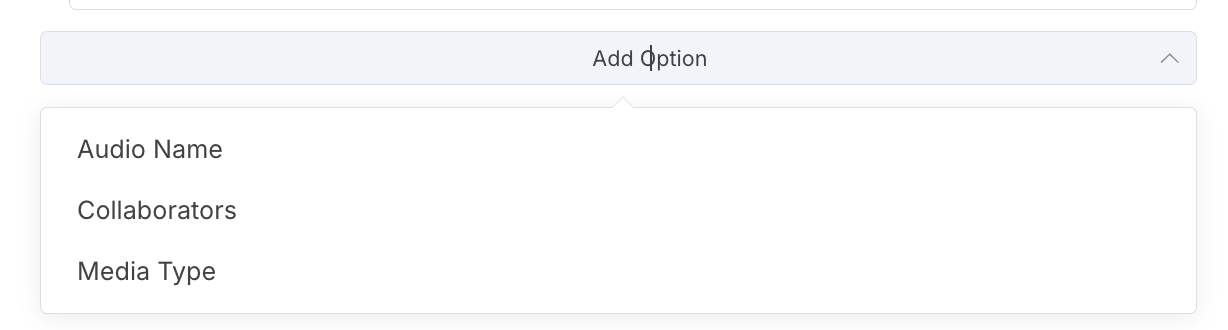
### Using n8n, Make, or API
1. Open the Instagram publish node
2. Click "Add Option" (n8n) or "Advanced Settings" (Make)
3. Select "Collaborators"
4. Enter the collaborator handle without the @ sign
***
## Ideas for automating content?
There are lots of content automation templates in the help section, combining Blotato with tools like n8n and Make.com: [REST API quickstart](/start-with-an-ai-agent/start.md)
RSS.app is also useful for pulling content ideas from social platforms such as X, Reddit, Instagram, and TikTok.
***
## How do you find what you've created?
To find a post draft:
1. Open the [AI Agent](https://my.blotato.com/agent) and look for the draft card.
2. If the draft is missing, open the [older Remix screen](https://my.blotato.com/remix) and look for it there. Drafts made in Remix and posts moved back to drafts often appear there.
3. If you created the draft in the AI Agent on another browser or device, return to the browser and device you used to create it. AI Agent drafts stay in that browser session.
4. If you still cannot find the draft, [contact support](/support/get-support.md) with the screen URL, approximate creation time, and last action you took.
Generated visuals and video projects are in [Videos](https://my.blotato.com/videos). A video project and a post draft are separate items. Published posts are in [Posts > Published](https://my.blotato.com/posts?status=published).
Review the [Calendar](https://my.blotato.com/calendar), [Posts > Scheduled](https://my.blotato.com/posts?status=scheduled), or [Posts > Published](https://my.blotato.com/posts?status=published) according to the post's state.
***
## Why is my draft in the Remix screen and not the AI Agent?
Some drafts open in the [older Remix screen](https://my.blotato.com/remix) instead of the [AI Agent](https://my.blotato.com/agent). This happens when you:
* Create a draft in the older Remix screen
* Retry a failed post
* Reschedule a post
* Move a scheduled post back to drafts
* Click "Create Post" in the video editor
To find these drafts:
1. Open the [Remix screen](https://my.blotato.com/remix)
2. Look for your draft there
Blotato is phasing out the Remix screen. Until then, check both screens when a post draft is missing. Follow the [draft-finding steps](#how-do-you-find-what-youve-created) if the post is missing from Remix too.
**TikTok drafts are the exception.** A TikTok post published as a draft does not appear in Blotato at all -- not in the AI Agent and not in the Remix screen. It lands in the **TikTok app's notifications** (often labeled "System Notifications"), shown as "Draft Video from Blotato." See [How Do I Access TikTok Drafts Published via Blotato?](/social-accounts-and-platform-faqs/tiktok/faqs.md#how-do-i-access-tiktok-drafts-published-via-blotato).
***
## Why don't my drafts show up on my phone? / I made drafts on my laptop and they are not on my other device
First, check the [older Remix screen](https://my.blotato.com/remix) for the post draft. If you created the draft in the [AI Agent](https://my.blotato.com/agent), it is tied to the browser where you created it. The AI Agent workspace (your session, drafts list, and context) is stored in that browser, so its drafts will not appear when you log in on your phone or another computer. Refreshing or logging in again on the other device does not bring them over.
What to do:
1. Finish and schedule a draft on the same device and browser where you created it
2. Once a post is scheduled or published, it is visible from any device in [Posts > Scheduled](https://my.blotato.com/posts?status=scheduled) and [Posts > Published](https://my.blotato.com/posts?status=published)
The new AI Agent works best on desktop. Use your phone to review scheduled and published posts rather than to edit drafts.
## How do I clear or delete all my scheduled posts?
The current Posts list does not have the older bulk-delete control. To remove a scheduled post from the publishing queue:
1. Open [Posts > Scheduled](https://my.blotato.com/posts?status=scheduled).
2. Open the post's actions menu.
3. Select Move to drafts.
4. Confirm the move.
5. Verify the post is no longer scheduled.
Repeat for each post you want to remove from the queue. Move to drafts retains the content for editing in Remix. See [Manage scheduled posts](/web-app-features/content-calendar/tutorial.md#delete-scheduled-post).
## How do I reschedule a scheduled post?
1. Open [Posts > Scheduled](https://my.blotato.com/posts?status=scheduled).
2. Open the post's actions menu.
3. Select Reschedule.
4. Choose the new date and time.
5. Save the change.
6. Verify the updated time in Posts or [Calendar](https://my.blotato.com/calendar).
See [Content Calendar Setup](/web-app-getting-started/calendar.md#managing-scheduled-posts).
## How do I move a scheduled post back to drafts?
1. Open [Posts > Scheduled](https://my.blotato.com/posts?status=scheduled).
2. Open the post's actions menu.
3. Select Move to drafts.
4. Confirm the move.
5. Edit the post in [Remix](https://my.blotato.com/remix).
Moving to drafts removes the schedule without publishing. Schedule the post again after editing if you still want to publish. To change only the time, use Reschedule instead.
See [Manage scheduled posts](/web-app-features/content-calendar/tutorial.md).
## Where can I view my scheduled or upcoming posts?
Open [Posts > Scheduled](https://my.blotato.com/posts?status=scheduled) for the list or [Calendar](https://my.blotato.com/calendar) for the calendar view.
***
## I get "All selected platforms are already queued for publishing"
1. Record the exact message and originating draft. Do not infer an account-wide publishing block from this message.
2. Read the draft's per-destination status.
3. Check [Posts > Scheduled](https://my.blotato.com/posts?status=scheduled), [Posts > Published](https://my.blotato.com/posts?status=published), and [Posts > Failed](https://my.blotato.com/posts?status=failed) for the same content and destination.
4. If the existing submission is processing, wait for its result. If it is scheduled or published, do not submit a duplicate.
5. If the screen disagrees with those records, refresh once and send support the screenshot, destination, and submission or scheduled-post ID when available.
The current AI Agent submits only pending destinations on a draft. Do not delete failed posts, remove schedules, reconnect accounts, or change destinations to clear this message without evidence for that specific action.
***
## My scheduled post keeps failing with a media fetch error, but I uploaded the video from my computer
A local upload still becomes a hosted media URL for publishing. A fetch or parsing error does not, by itself, prove a corrupt file or invalid stored reference.
1. Record the exact error and failed post ID.
2. Confirm the upload finished and the resulting media is accessible.
3. Check the file's container, codecs, dimensions, duration, and size against the destination's [media requirements](/rest-api-reference/publish-post/media.md). A `.mp4` filename alone is not proof of its format.
4. If the upload failed or its stored URL is unusable, upload the valid source file again and replace the failed draft's attachment.
5. Verify whether any destination already published before scheduling a replacement.
If the media is accessible and meets the requirements, send support the error and post ID for log inspection instead of repeating uploads. See [media upload and conversion diagnosis](/api-and-mcp-concepts/media-uploads-and-conversion.md).
***
## AI Agent FAQ
### How do I make a post if I only put text context?
Adding Text context does not generate a post automatically.
1. Confirm the source finished loading and its checkbox is selected in Context.
2. Enter “Create 1 LinkedIn post from my selected context. Keep it as a draft.” in the AI Agent prompt box, replacing LinkedIn with your destination.
3. Press Enter.
4. Review the draft card before publishing.
Follow [Make Your First 5 Posts](/web-app-getting-started/posts.md) for media, account selection, and result verification.
### Where is the Save button? I only see "Publish" / I don't want to publish yet, I just want to save my work
There is no separate Save button for AI Agent drafts. Drafts are saved automatically in their browser session. Video projects are saved separately in Videos.
* AI Agent post drafts stay in the [AI Agent](https://my.blotato.com/agent) on the browser where you created them.
* Older Remix post drafts are in [Remix](https://my.blotato.com/remix).
* Video projects are in [Videos](https://my.blotato.com/videos).
To keep working without publishing, leave the post as a draft. Do not click Publish or Schedule. Scheduling commits the post to future publication, not draft-only storage. See [Saved Draft Posts](/web-app-getting-started/posts.md#saved-draft-posts).
### How do I create a new post when I still have a different one in drafts? / I have content open but want to post something else quickly
To create a post while keeping your existing drafts:
1. Click New post in the [AI Agent](https://my.blotato.com/agent).
2. Replace the placeholder text with your caption, or select the draft and ask Chat to write it from your context.
3. Review the draft before selecting publishing accounts.
Your existing draft cards remain in the session. Do not use Discard drafts to start another post.
***
## How do you sync content across devices (e.g. mobile, desktop)?
Content in the [AI Agent](https://my.blotato.com/agent) does NOT sync across devices:
* **Context** (videos, articles, PDFs, text) is stored locally in your browser. If you switch from laptop to phone, re-add your context on the new device.
* **AI Agent drafts** are tied to the browser where you created them. If a post draft is missing, also check [Remix](https://my.blotato.com/remix). See: [Why don't my drafts show up on my phone?](#why-dont-my-drafts-show-up-on-my-phone-i-made-drafts-on-my-laptop-and-they-are-not-on-my-other-device)
Scheduled and published posts DO sync. Once you schedule or publish a post, it is visible from any device in [Posts > Scheduled](https://my.blotato.com/posts?status=scheduled) and [Posts > Published](https://my.blotato.com/posts?status=published).
***
## Is there a Blotato mobile app? How do I use Blotato on mobile?
The new Blotato agent (the main screen where you create and publish posts) is meant for desktop and laptop, not mobile. The video editor is also not mobile-friendly.
You can open [Blotato](https://my.blotato.com) in a mobile browser (Chrome, Safari, or Brave) to review [Posts > Scheduled](https://my.blotato.com/posts?status=scheduled) and [Posts > Published](https://my.blotato.com/posts?status=published). Create and edit your posts and videos on a desktop or laptop for the full workflow. AI Agent drafts are tied to the browser where you created them, so drafts made on your laptop will not appear on your phone.
I don't have plans to release a separate mobile app.
***
## How do I type emojis?
In the AI Agent where you have draft posts, type a colon ":" and you should see the emoji picker.
***
## Can I connect Dropbox, Google Drive, or other cloud storage?
Blotato has no direct integration with Dropbox, Google Drive, or other cloud storage. You cannot connect them as an account or browse their files inside Blotato.
You can still publish files you keep there:
1. Get a public direct file URL for the image or video (a link to the file itself, not a shared preview page).
2. Publish with that URL as your media. Pass it in the `mediaUrls` parameter when you use the API, or upload the file in the web app when you create a post.
***
## Where do I add my sources or context when creating a video or post?
In the AI Agent, click the + button beside Context in the sidebar. The website selector offers Text, Article, YouTube, TikTok, Perplexity, Audio, PDF, and Rule. It does not offer an X/Twitter option. See [Understanding Context](/web-app-getting-started/sources.md#context-supported) for inputs and extraction requirements.
Context supplies text for draft generation. It does not attach a source video to a post or generate a video automatically. To use extracted text in a video, follow [Context to a video template](/web-app-features/videos/faqs.md#how-do-i-use-content-from-context-in-a-carousel-or-video-template).
To save context, check Save Source?, enter a Name, and submit with Add for a new source or Done for an existing source. After processing, confirm it appears in the [Sources library](https://my.blotato.com/sources). The Sources page manages saved sources, while the AI Agent sidebar provides the source form.
***
## How do I remix a YouTube video? (I saw a Remix button for a YouTube URL)
Paste the YouTube URL as Context in the AI Agent to create post drafts. Generating a video is a separate [template workflow](/web-app-features/videos/make-your-first-ai-video.md):
1. Open the [AI Agent](https://my.blotato.com/agent).
2. Click the + button beside Context in the sidebar.
3. Choose YouTube.
4. Paste the video URL.
5. Click Add.
6. Wait for extraction to finish, then review Source Contents. English captions must be available.
7. Ask the AI Agent to create a draft from the selected context.
8. Review the draft before publishing.
Older tutorials call this “remix a YouTube video.” In the AI Agent, start with the + button beside Context. Adding a URL does not create a draft until you request one. For the older Remix layout, use the [screen-specific instructions](/web-app-getting-started/posts.md#older-remix-screen).
***
## How do I add my own video (for example from CapCut) as a source or context?
Context does not accept a direct video-file upload. To generate drafts from your video, paste its transcript as Text context. Alternatively, use its YouTube URL after English captions are available and follow [YouTube context extraction](#how-do-i-remix-a-youtube-video-i-saw-a-remix-button-for-a-youtube-url).
To publish your own finished video instead of using it as a source, you do not need YouTube. Open or create a post, click **Photo / Video**, and upload your video file.
See: [Understanding Context](/web-app-getting-started/sources.md)
***
## Why does my Instagram Story post as a feed post instead of a Story?
An Instagram Story accepts only one image or one video per post. If you attach multiple images to a Story, Blotato publishes them as a regular feed post instead.
To post several Stories, create a separate post for each image or video and schedule them one at a time.
***
## Do you support Facebook personal profiles or Facebook groups?
Unfortunately, Facebook does NOT allow publishing to personal profiles or groups. If this ever changes, I'd happily integrate it!
## Do you support Facebook Stories?
Yes. When scheduling a Facebook post, select "Story" from the media type dropdown. Facebook stories require one video or image attachment. If more than one is provided, only the first is used and published.
For API and MCP users, pass `"story"` as the `mediaType` in the target object. See the [Publish Post API reference](/rest-api-reference/publish-post.md) for details.
## Unable to Post on Facebook?
1. Open Schedule on your draft.
2. Select the connected Facebook account.
3. Select the Facebook Page for this post.
4. Review the destination and publishing time before submitting.
See [Schedule posts](/web-app-features/content-calendar/schedule-posts.md) for the current scheduling screen.
## How do you remove "Posted by Blotato" from Facebook post?
The "Published by \[App Name]" label appears on Facebook posts when they are published via any third-party app, rather than directly through Facebook. Unfortunately, Facebook does not allow you to remove this label because it is part of their transparency policy.
***
## How do I delete multiple scheduled posts at once?
The current Posts list does not have a bulk-delete control. Use Move to drafts on each scheduled post you want to remove from the queue. See [Remove scheduled posts](#how-do-i-clear-or-delete-all-my-scheduled-posts).
***
## Do you support Google Business Profile?
Blotato does not support Google Business Profile. Blotato publishes to Instagram, Facebook, TikTok, YouTube, LinkedIn, X (Twitter), Threads, Pinterest, and Bluesky.
To send post content to another destination like Google Business Profile, use the [webhook publish target](/rest-api-reference/publish-post.md) with an automation tool (n8n, Make.com, or Zapier): Blotato sends the post data to your webhook, and your automation posts it to the destination.
***
## Does Blotato have dark mode?
Not yet. Blotato does not have a dark mode option. The app uses a light theme only.
***
## Do you support Claude.ai, Claude Desktop, and Claude Cowork?
Yes. Open **Customize > Connectors**, click the **+** button, then **Add custom connector**, enter the Blotato MCP URL, and approve access via OAuth. See the setup guide: [MCP Setup](/start-with-an-ai-agent/mcp/setup.md)
***
## Is there a Claude course with certification?
Anthropic offers free official Claude courses with certificates at [Anthropic Academy](https://anthropic.skilljar.com/). Start there for a structured learning path with certification.
For Blotato-specific workflows, follow Sabrina's tutorials: [Claude + Blotato setup](https://www.youtube.com/watch?v=1dSNfnFL40c), [Build an AI Social Media Manager with Claude Code](https://youtu.be/3HVH2Iuplqo), and the [Claude Cowork & Desktop setup tutorial](https://youtu.be/mh4Z9U-oaps).
***
## Where are the free Claude skills? / Where are the marketing skills?
The 7 free Claude content skills are here: [Free Claude Skills](/claude-skills/claude-skills.md)
The 7 skills compose into one workflow:
* **content-coach** — start here. Takes you from "I don't know what to post" to a scheduled post, and runs the others for you.
* **brand-brief** — one-time setup that captures your business, customer, CTA, story, and voice.
* **post-writer** — writes a graded, polished post about any topic.
* **post-grader** — scores a draft and lists the top 3 fixes.
* **post-scheduler** — ships the final post via Blotato.
* **repurpose** — turns one blog post, newsletter, or transcript into a week of platform-native content.
* **viral-hooks** — a library of 100 proven viral hook frameworks that opens every post with a tested hook.
You install each skill once, then use it forever in Claude Code, Claude Desktop, and Claude Cowork. On day one you only need content-coach. It calls the others behind the scenes.
***
## Where are the 100 skills or 100 viral hooks I was promised when I subscribed?
The promotion in the app refers to the free Claude skills bundle, which includes the **viral-hooks** skill: a library of **100 proven viral hook frameworks** grouped into 13 categories. Everything is here:
* Download and install the skills: [Free Claude Skills](/claude-skills/claude-skills.md)
* Browse the hooks guide in the docs: [Hooks](/tips-and-tricks/hooks.md)
The skills do not appear inside your Blotato subscription dashboard. You install them once in Claude (Code, Desktop, claude.ai, or Cowork) and use them forever. Start with **content-coach**, and use **viral-hooks** to open any post with one of the 100 hook frameworks.
***
## Can I import my existing Instagram Reels or social posts as a content source?
The website Context selector has no Instagram or X/Twitter option. Paste the caption or transcript as Text context. YouTube and TikTok URLs use their own source types and require English captions for extraction.
For the website's supported inputs, follow [Understanding Context](/web-app-getting-started/sources.md#context-supported). API source extraction is a [separate workflow](/agent-workflows/agent-workflows/sources.md).
***
## How do I use Google Drive files as context?
The website Context selector has no Google Drive integration. A Drive preview link is not a direct PDF or audio file URL.
Workaround based on file type:
1. For documents or articles: Open the file in Google Drive, copy the text, and add it as "Text" context
2. For PDFs: Download the PDF from Google Drive, then upload it as "PDF" context
3. For audio files: Download the audio from Google Drive, then upload it as "Audio" context
4. For videos: Paste the transcript as Text, or use a YouTube URL with English captions available for extraction.
Supported context types: Text, Articles/Websites, YouTube, TikTok, Audio/Podcasts, PDFs, and Perplexity AI. See: [Understanding Context](/web-app-getting-started/sources.md)
***
## How do I save a source or add to my Sources library?
Save a source from the AI Agent, not from the Sources page directly:
1. Open the source from the [AI Agent](https://my.blotato.com/agent) sidebar.
2. Check Save Source?.
3. Enter a Name.
4. Click Done for an existing source or Add for a new source.
5. Wait for processing to finish.
6. Confirm the source appears in your [Sources library](https://my.blotato.com/sources).
Checking the box alone does not save. Submitting an existing source requests reprocessing. See [Understanding Context](/web-app-getting-started/sources.md#saving-sources-to-your-sources-library).
***
## Trying to add a website but it's not working?
Sometimes when you try to add a blog, article, or website as new context, you'll see a message related to "enabling Javascript and cookies". This means Blotato's website scraper is unable to access the website due to its anti-scraping policies.
I recommend this workaround:
Copy and paste the article, website, or blog, then add it as Text context.
## Why did I get charged during my free trial?
Trial AI credits cover AI image and video generation. Adding a voiceover does not consume Blotato AI credits. Upgrading starts the paid subscription. Review [trial and billing details](/settings/billing-and-credits.md#whats-included-in-the-free-trial) before confirming a billing change.
Also, the API is limited to paying users to prevent spam/abuse of people posting low-quality content. If you generated an API key, it will activate your paid subscription.
***
## I signed up for the free trial but I was still billed?
Blotato free trial includes everything except API access. The API is limited to paying users to help reduce spammy content. Before you generate an API key, there is huge sign explaining this, PLUS a confirmation popup requiring you to confirm, which you clicked. It's also on the website at the top of the Pricing page: [Help guide](/settings/billing-and-credits.md#whats-included-in-the-free-trial)
Alternatively, if you clicked the UPGRADE popup after running out of free trial credits, this will also convert your free trial to a paid subscription.
## My account shows "incomplete payment" but I already paid
This happens when Stripe generates a second subscription or invoice that did not complete payment, even though your previous invoice is paid.
1. Go to [Settings > Billing](https://my.blotato.com/settings/billing) and click "View Billing Portal"
2. Check your INVOICE HISTORY for duplicate invoices in the same billing period
3. If you see a paid invoice and a separate open/unpaid invoice for the same amount, contact support through the in-app chat (orange circle in the bottom right corner)
Do not retry payment on the open invoice until support confirms whether it is a duplicate. Blotato support can void the duplicate invoice and restore your access.
If you cannot sign in or the chat widget does not load, email with your account email and the charge date.
### It says "Your subscription setup is incomplete. Please complete the payment process to activate your subscription."
This message means Stripe started your subscription but the payment itself never went through, so the subscription is stuck in an incomplete state. Having a payment method saved is not enough -- the charge must succeed.
1. Go to [Settings > Billing](https://my.blotato.com/settings/billing) and click "View Billing Portal"
2. Complete the pending payment there, or update your card and retry once
3. If the charge keeps failing with a valid card, contact your bank -- banks decline subscription charges, and only your bank sees the decline reason
4. Still stuck? Contact support in the in-app chat with your account email -- support clears the incomplete subscription so you subscribe cleanly. You can also create a fresh account with a different email and subscribe there
**Already paid?** If your charge succeeded (your bank shows the money left, or the invoice shows Paid) and this message still appears, do not pay again and do not retry checkout -- another attempt bills you again for the same period. Stripe is trying to bill a stale Incomplete or Expired subscription on your account. Contact support in the in-app chat with your account email: support cancels the stale subscription and restarts your plan cleanly. Wait a minute after support confirms, then refresh the page. The sections below cover the matching symptoms.
### It says "Your subscription setup has expired" (status INCOMPLETE\_EXPIRED) but my invoice shows Paid
You paid, the invoice shows Paid in the billing portal, but every login shows a "Your subscription setup has expired" modal and your subscription status reads INCOMPLETE\_EXPIRED. Your API key is also rejected while the account is in this state.
This happens when the payment confirmation settles after Stripe's confirmation window (about 23 hours) closes — the subscription record expires even though the charge succeeded.
Reactivating from the billing portal does not clear this state. Do not pay again. Contact support in the in-app chat with your account email: support cancels the expired Stripe subscription and restarts your plan cleanly. Wait a minute after support confirms, then refresh the page.
### My payment was deducted but Blotato says the transaction failed / I keep getting charged after canceling
A related pattern: Stripe keeps trying to bill a previously Incomplete or Expired subscription on your account. This causes payments that show as failed even though money left your bank, repeated charge attempts after you canceled, or an account that stays locked after paying.
Do not pay again -- another attempt lands on the same stale subscription. Contact support in the in-app chat and say your payment shows failed or you are still being charged. Support cancels the Incomplete or Expired Stripe subscription, then restarts your plan cleanly. If a duplicate payment went through, support refunds it.
A stale Incomplete subscription also blocks plan changes. If the billing portal will not let you switch plans (for example from Creator to Starter) because your subscription shows Incomplete, contact support to cancel the incomplete subscription first. As a last resort, create a fresh account with a different email at [blotato.com/pricing](https://www.blotato.com/pricing) and select the plan you want there.
***
## Why does it say "Your subscription payment is past due" if I have a trial?
The two most common reasons are:
1. You generated an API key, which activates your paid subscription immediately. Blotato free trial includes everything except API access. The API is limited to paying users to help reduce spammy content. Before you generate an API key, there is a large sign explaining this, plus a confirmation popup requiring you to confirm.
2. Your 7-day free trial has ended.
To manage your subscription, go to [Settings > Billing](https://my.blotato.com/settings/billing) and click "View Billing Portal."
More details:
* [What's included in the Free Trial?](/settings/billing-and-credits.md#whats-included-in-the-free-trial)
* [Pricing](https://www.blotato.com/pricing)
***
## I don't see a prompt for my use case?
You can import your own prompts in Blotato or request a custom prompt here:
## How do I use blotato to write long-form content?
You can import your own prompts in Blotato or request a custom prompt here:
## How do I teach AI to use my voice?
Edit existing prompts or import your own prompts to make the output sound more like you: [Make Output Sound Like You](/tips-and-tricks/make-output-sound-like-you.md)
***
## How do I make my visuals match my brand voice?
### Using Blotato Web App
For text and images in the in-app AI Agent, select the intended brand before generation. For template-based videos, carousels, and slideshows, enter a prompt and enable "Use brand kit".
Follow [Brand Kit](/settings/brand-kit.md) for the scope and brand-selection rules. Review the output instead of assuming every scene includes a logo or brand asset.
### Using Blotato API (n8n / Make.com)
For REST template generation, provide a prompt and `useBrandKit: true`. For MCP or an n8n or Make.com node, inspect the available fields. If brand settings are not exposed, include the required brand instructions in the prompt.
## How do I set up my Brand Kit?
1. Open [Settings > My Brand](https://my.blotato.com/settings/brand).
2. Select the brand to edit.
3. Fill in the business, audience, and content fields.
4. Save your changes.
Brand Kit use depends on the generation surface. Read [Brand Kit](/settings/brand-kit.md) before applying website instructions to a REST or MCP request.
## How do I control what people or style appear in my AI-generated videos?
### Using Blotato Web App
1. Add audience and style instructions in [Settings > My Brand](https://my.blotato.com/settings/brand).
2. Select a template at [Videos > Create New Video](https://my.blotato.com/videos/new).
3. Enter a prompt describing the people, scene, and style.
4. Enable "Use brand kit".
5. Review the generated scenes before publishing.
### Using Blotato API (n8n / Make.com)
Include the requested visual direction in the template prompt. For REST brand-context options and their conditions, read [Brand Kit](/settings/brand-kit.md). Use the selected template's current schema for scene inputs.
## Instagram says "We restrict certain activity to protect our community"
This error comes from Instagram, not Blotato. Instagram flagged your account or content based on risk/spam scores.
To fix:
1. Reduce the number of hashtags in your caption
2. Shorten your caption length
3. Increase the time between posts (at least 30 minutes apart)
4. If none of the above works, post manually on Instagram for a few days to warm up your account
This error is more common with new Instagram accounts or accounts that post frequently via third-party apps. See: [Error Reference](/support/errors.md)
***
## Where do I find new features or release notes?
Blotato does not have a changelog page.
To stay updated:
* Check in-app notifications when they appear
* Browse the [Help Center](/readme.md) for updated documentation
***
## Can I generate avatar videos or UGC-style videos in Blotato?
Identify the requested output before selecting a template. A generated character, an existing talking-head recording, and a trained clone of a real person are different tasks.
### Using Blotato Web App
1. Open [Videos > Create New Video](https://my.blotato.com/videos/new).
2. For generated character video, select "AI Selfie Talking Video with Consistent Character".
3. For adding B-roll to an existing avatar or camera video, select "AI Avatar with AI Generated B-roll".
The template names do not establish face training, voice cloning, or exact identity reproduction. Check the requested capability before promising it.
### Using Blotato API (n8n / Make.com)
Read the [selfie character template](/rest-api-reference/visuals/57f5a565-fd17-458b-be43-4a2d8ccaca75.md) or [existing-avatar B-roll template](/rest-api-reference/visuals/7c26a1cd-d5b3-42da-9c73-2413333873b3.md). Retrieve its current input schema and follow the [visual workflow](/agent-workflows/agent-workflows/visuals.md).
## How do you use HeyGen with Blotato?
To use HeyGen with Blotato, you have 2 options:\
\
1\. Make your avatar video in the Heygen web app, download the completed video, and attach it to your post in blotato, as shown in this screenshot:
\
\
2\. Use make.com to setup an automated flow to generate Heygen avatar videos, then post them to social media platforms automatically via blotato's API. Here is the step-by-step tutorial how to do this:
## How do I add a long link to a post?
If you're adding a long link or URL to a post on short-text platforms like Twitter, Threads, or Bluesky, I recommend using a free link shortener, such as Bitly or Shorturl. I don’t have automatic link shortening as a feature in Blotato yet.
On Instagram and Facebook, put your link in the **First Comment** field instead of the caption. Blotato auto-posts it right after the post publishes. See [How do I add a first comment to a post?](#how-do-i-add-a-first-comment-to-a-post).
## What does the red "Disconnected" banner mean?
If you **keep getting a "Disconnected" message** -- it appears constantly, or your connection keeps dropping -- this is the notification below, and it is **not** a social account problem.
The red "Disconnected" banner in the top-right corner of Blotato is a real-time connection notification. It means your browser's live connection to Blotato's servers was temporarily interrupted.
Wait a few minutes -- Blotato automatically reconnects and the message disappears. If it persists, refresh the page (Ctrl/Cmd + Shift + R).
This notification does not mean your social accounts are disconnected. Your social accounts, scheduled posts, and settings are unaffected.
## Do you have to fill out the text input box for TikTok videos and Instagram Reels?
You don't need to put text in the box, but I highly recommend putting an SEO optimized caption there. 35% of my weekly TikTok traffic comes from search, so putting additional details in your video's description helps bring in new viewers over time. Here's an example caption from one of my tiktoks:\
\
"""\
Top seven AI tools to build AI agent teams without coding required. These are all low-code platforms for building multi agents AI teams. As AI shifts towards more autonomy, it’ll be interesting to see if these platforms can evolve.\
\
\- what are the best low code platforms to build AI agents?\
\- top AI tools to build AI agent teams?\
\- recommended AI agent builder platforms for businesses?\
\
\#ai #artificialintelligence #aitools\
"""
## How many hashtags should I use?
Use a maximum of 5 hashtags on Instagram, TikTok, and Facebook. More than 5 reduces your reach on these platforms.
You don't need hashtags on other platforms. LinkedIn, Twitter, Threads, Bluesky, YouTube, and Pinterest do not benefit from hashtags and they are generally frowned upon.
## What does this error mean? "TikTok video is missing the subtitle track."
\
Right now, Blotato can only analyze TikToks that have a subtitle track. Most TikTok videos do have subtitle tracks, so I recommend trying with a different video. I will improve this in the future, so that Blotato automatically transcribes videos that don't have a subtitle track.
## How do I set a custom cover image for Instagram Reels?
1. Create your post with a video attached
2. On the publish screen, expand the advanced options
3. Add your cover image URL in the "Cover Image" field
4. Publish as usual
The cover image must be a publicly accessible URL and under 8MB.
For n8n / Make.com users, this field is in the advanced options of the Blotato Publish node.
For REST API / MCP users, see: [Publish Post API Reference](/rest-api-reference/publish-post.md)
For TikTok cover images, see: [TikTok Custom Thumbnails](/social-accounts-and-platform-faqs/tiktok/faqs.md#how-do-i-set-a-custom-thumbnail-for-tiktok)
## Can you upload multiple photos?
You can upload multiple photos to a social media post for several platforms (Facebook, LinkedIn, etc.)
... BUT not a photo slideshow for TikTok or Reels (see below).
## How do I make carousels or slideshows in Blotato?
### In Blotato Web App
1. Go to [Videos > Create New Video](https://my.blotato.com/videos/new)
2. Select a carousel or slideshow template (e.g., "Image Slideshow with Text Overlays")
3. Enter your content idea in the Prompt field
4. Add style directions to the prompt, such as colors, mood, typography, lighting, or image style
5. Click "Need more customization? Click to see advanced options"
6. Adjust the settings shown for the selected template
7. Click "Generate Video"
Every visual template includes advanced settings, and the available controls differ by template. See [How do I customize a visual template or make a new variation?](/web-app-features/videos/faqs.md#how-do-i-customize-a-visual-template-or-make-a-new-variation)
**To use your own images:**
1. Click "Need more customization? Click to see advanced options"
2. For each slide, choose "Upload Image" from the Image Source dropdown
3. Upload your image (max 20MB)
4. Optionally add text overlay for each slide
5. Click "+ Add Slide" to add more slides
6. Click "Generate Video" when done
### In n8n or Make
Use the Blotato CREATE VISUAL node to generate carousels and slideshows from templates:
1. Add a Blotato node and select "Visual" > "Create"
2. Select a template from the dropdown list
3. Keep default inputs and click Execute to instantly make a carousel
4. Update inputs one-by-one to customize
5. Check the [Logs](https://my.blotato.com/logs) to see the JSON payload for each template
User-generated visual templates created or edited in the Blotato web app do not appear in n8n or Make.com yet. Select one of the premade Blotato templates from the dropdown list.
Tip: Browse all available templates at [Videos > Create New Video](https://my.blotato.com/videos/new) to see how they work before building your automation.
Blotato accepts image source URLs for TikTok and converts non-JPEG images to JPEG for submission. A PNG source alone does not establish the cause of a publishing error. See [TikTok media requirements](/social-accounts-and-platform-faqs/tiktok/limitations.md).
***
## Can I post trial reels to Instagram?
Yes. Trial reels are shared with non-followers first, letting you test content before promoting it to your followers.
### Using Blotato Web App
1. Create your post and attach a video
2. Select Instagram as the platform
3. On the scheduling screen, look for the "Trial Reel" option
4. Choose your graduation strategy:
* Manual: You decide when to promote the reel to your followers
* Auto (performance-based): Instagram promotes the reel based on performance
5. Schedule or publish the post
### Using Blotato API (n8n / Make.com)
1. Set `target.targetType` to `"instagram"` and `target.mediaType` to `"reel"`
2. Add the `target.trial` object with a `graduationStrategy`:
* `"MANUAL"` -- you manually promote the reel to followers
* `"SS_PERFORMANCE"` -- Instagram auto-promotes based on performance
3. Submit the post
Example:
```json
{
"post": {
"accountId": "98434",
"content": {
"text": "Testing this with new audiences first",
"mediaUrls": ["https://example.com/video.mp4"],
"platform": "instagram"
},
"target": {
"targetType": "instagram",
"mediaType": "reel",
"trial": {
"graduationStrategy": "SS_PERFORMANCE"
}
}
}
}
```
Trial reels only apply to Instagram Reels (video posts). They have no effect on image posts or stories.
See: [Publish Post API](/rest-api-reference/publish-post.md)
## How do you convert the SEO-optimized outline into a
I'm using the SEO Optimized Article Outline Prompt. When I have the result, I would like to use the outline to create the blog content based on that outline. How can I do that?
\
Simply copy/paste the SEO-optimized outline and add new Text context in Blotato.
Then use a different prompt to write your full blog post.
## What does the "Include Sources" toggle button do?
Enabling the "Include Sources?" toggle will append all your source links to the bottom of your post.
If your source doesn't have a link (e.g. Text or Perplexity), then no link will be appended.
## What does this TikTok error mean: "Error uploading images to TikTok: The request post info is empty or incorrect"?
Here's how to troubleshoot this error:
1. Open the failed destination in [Posts > Failed](https://my.blotato.com/posts?status=failed) or its request in [Logs](https://my.blotato.com/logs).
2. Retain the exact error and request ID.
3. Check the source media against [TikTok media requirements](/social-accounts-and-platform-faqs/tiktok/limitations.md). Blotato converts non-JPEG images before submission, so do not reject a source solely because it is PNG.
4. Check the caption and TikTok options against the error.
5. Check whether another destination already published before retrying.
The image limit is based on area, not a maximum side length of 1080 pixels. A 1080 × 1920 portrait image is within the documented 1080p area limit. If the cause remains unclear, send support the error and request ID rather than repeatedly publishing tests.
***
## Can I comment on posts with Blotato? / Does Blotato support commenting?
Yes, for Instagram and Facebook. Blotato reads and posts comments on your published Instagram and Facebook Page posts through the [Comments API](/rest-api-reference/comments.md) and the [MCP tools](/start-with-an-ai-agent/mcp/tools.md).
You can:
* Read the comments on your published Instagram and Facebook posts, including audience replies and your own.
* Post a top-level comment on your published Instagram and Facebook posts.
* Reply to a top-level comment on your published Instagram and Facebook posts.
You can also auto-post a **first comment** on your Instagram and Facebook posts when you publish, set through the web app, API, or MCP. A common use is putting a link in the first comment. See [How do I add a first comment to a post?](#how-do-i-add-a-first-comment-to-a-post).
To answer commenters automatically, set up a [DM automation](/web-app-features/dm-automations.md). When someone comments a keyword on your Instagram or Facebook post, Blotato sends them a direct message.
Blotato does NOT support:
* Comments on unsupported platforms (Twitter/X, TikTok, LinkedIn, Pinterest, Threads, Bluesky, YouTube).
* Commenting on other people's posts.
* Replies to replies. You can reply to a top-level comment, but not to a reply.
* Automated public reply bots posting comments back to your audience at scale.
* Cold direct messaging to people who never contacted you.
For LinkedIn engagement automation, Blotato has no equivalent. PhantomBuster covers it (but it's risky).
***
## Can I read or send direct messages (DMs) with Blotato?
Yes, for Instagram and Facebook. Blotato reads and sends direct messages on your Instagram account and Facebook Page through the [Messages API](/rest-api-reference/messages.md) and the [MCP tools](/start-with-an-ai-agent/mcp/tools.md).
You can:
* Read your conversations and messages.
* Reply to people who already have a conversation with you.
* Send a private reply to a comment on your posts.
* Reply automatically with a [DM automation](/web-app-features/dm-automations.md) when someone comments on your post or messages you.
Blotato does NOT support:
* Messaging on platforms other than Instagram and Facebook.
* Cold outreach to people who have not engaged with you first.
The social platform limits who you can message and when. You reply within a 24-hour window after someone messages you, or send a private reply to their comment. Sending a message to a new person counts toward your monthly active-contacts limit. See [Messages API](/rest-api-reference/messages.md).
***
## Does Blotato support TikTok DM automations?
No. DM automations currently support Instagram and Facebook Pages.
TikTok publishing, scheduling, and repurposing workflows are separate features. They do not provide comment-triggered direct messages.
See [DM Automations](/web-app-features/dm-automations.md).
***
## Why doesn't my DM automation trigger when I comment on my own post?
Blotato skips comments posted by the same Instagram account or Facebook Page connected to the automation. Your own comment does not start a run or send a direct message, even when it contains the correct keyword.
Test the automation from a different account:
1. Publish the automation.
2. Sign in to a different Instagram or Facebook account.
3. Comment on the target post using one of the trigger keywords.
4. Confirm the other account receives the direct message.
5. Open the automation and review its runs and logs if no message arrives.
See [Test a Comment Trigger](/web-app-features/dm-automations.md#test-a-comment-trigger).
***
## Why don't my posts show up in the DM automation post picker?
The post picker lists posts published through Blotato only. A post you published directly in the Instagram or Facebook app, in Meta Business Suite, or through another tool never appears in the picker. A missing post is not a bug.
A post published through Blotato also stays out of the list in three cases:
* It went out on a different connected account than the automation.
* It is still scheduled. It appears once it publishes.
* It is older than the 20 newest posts. Type part of its caption into **Search your Posts and Reels** to find it.
To automate replies on a post published outside Blotato:
1. Open the automation in [Automations](https://my.blotato.com/dm-automations).
2. For **Comments**, pick **On any Post or Reel**.
3. Add the keyword your post asks people to comment, for example `GUIDE`.
4. Publish the automation.
The automation answers the keyword on every post and reel on the account. To target a future post by itself, publish it through Blotato.
Per-post targeting through the API or MCP follows the same rule. See [Trigger Object](/rest-api-reference/dm-automations.md#trigger-object).
See [Targeting a Specific Post](/web-app-features/dm-automations.md#targeting-a-specific-post).
***
## Can one DM automation answer both comments and direct messages?
Yes. An automation holds up to two triggers: one for comments and one for direct messages. Either one starts a run and sends the same message.
1. Open the automation in [Automations](https://my.blotato.com/dm-automations).
2. In the **When someone…** card, check both **Comments** and **Sends a DM**.
3. For **Comments**, pick a specific post or any post. The post picker lists posts published through Blotato only.
4. Add the keywords. Both triggers share the keyword list.
5. Publish the automation.
To pause one trigger without stopping the other, turn off its switch on the live automation. At least one trigger must stay on. See [Update a Single Trigger](/web-app-features/dm-automations.md#update-a-single-trigger).
***
## Why don't the buttons show up in my DM automation message?
Instagram shows DM buttons in the Instagram mobile app only. Someone reading your message on instagram.com in a desktop browser sees the text with no buttons under it. Instagram sets this behavior, not Blotato.
To work around this, you can paste the same URL into the message text instead. Use a button or a plain-text URL, not both. A message carrying both leaves the URL unclickable on desktop, so a desktop reader ends up with no working link at all.
* If your audience reads mostly on mobile, keep the link button.
* If your audience reads mostly on desktop, remove the button and put the URL in the message text instead.
On a follow gate the button is a confirm button, not a link, so removing it is not an option. Ask for a typed reply in the gate message instead, for example "Reply FOLLOWING once you have." Blotato runs the follower check on any text reply.
If button taps register for nobody on any device, reconnect the account in [Accounts](https://my.blotato.com/accounts). Blotato subscribes your account to button-tap events at connect time, and an account connected before DM automations landed does not reliably receive them.
See [DM Automations](/web-app-features/dm-automations.md#write-the-message).
***
## Can I require someone to follow me before my DM automation sends the link?
Yes, on Instagram. Turn on **Ask for a follow** in the automation. Blotato sends your gate message with a confirm button, waits up to 30 days for a reply, then checks whether the person follows you. A follower gets your link. Someone who does not follow gets the gate message again.
Points to expect:
* Only Instagram supports follow gating.
* The gate message always goes out first. Instagram grants Blotato access to follower status once the person opens a DM thread with your account, so Blotato asks first and checks second.
* Instagram withholds follower status for someone who never granted profile access. Blotato sends your link rather than blocking them.
* **Reconnect the account if you connected it before follow gating landed.** Blotato subscribes your account to button-tap events at connect time, so an older connection does not reliably receive the tap and runs stall until they expire. Reconnect in [Accounts](https://my.blotato.com/accounts).
* **Ask for a typed reply in the gate message.** Instagram shows DM buttons in the mobile app only, so a desktop reader sees no button. Blotato runs the follower check on any text reply, so wording like "Reply FOLLOWING once you have" moves a desktop reader forward the same way the button moves a mobile reader.
See [Ask for a Follow](/web-app-features/dm-automations.md#ask-for-a-follow-instagram-only).
***
## Can I collect email addresses through my DM automation?
Yes, on Instagram and Facebook Pages. Turn on **Ask for an email address** in the automation. Blotato sends your gate message, waits up to 72 hours for a reply, and reads the first email address out of it. A reply holding no address returns the gate message. Punctuation touching the address stays attached, so clean the address on your endpoint.
On automations published after September 14, 2026, a contact with an email already on file skips the email gate. Automations published earlier ask every time until you save them again.
An email lands on file when the contact replies with an address to any email gate on the same connected account.
To receive the address, turn on **Call a webhook** on the same automation. Blotato posts `{"email": "them@example.com", "isFollower": true}` to your endpoint once your message sends. `isFollower` is `null` when no follow gate checked the person. The Blotato inbox does not show captured addresses, so the webhook is the only way to read one.
See [Ask for an Email Address](/web-app-features/dm-automations.md#ask-for-an-email-address).
***
## Why didn't my DM automation ask for an email address?
On automations published after September 14, 2026, a contact who already replied with an email address to any email gate on the same connected account skips the email gate. Automations published earlier ask every time until you save them again.
To see the email question while testing:
1. Comment or message from an account with no email on file.
2. Confirm the account receives the email question.
To upgrade an older automation, open it, click **Edit**, then click **Save and Publish**.
See [Email Gate Rules](/web-app-features/dm-automations.md#email-gate-rules).
***
## Do I need a Button label and Web URL when collecting email addresses?
No. **Button label** and **Web URL** create an optional link button in the direct message. Keep the button only when you want the recipient to open a page.
For an automation that collects an email address and sends it to n8n, Zapier, Make.com, or a CRM:
1. Click **Remove** beside each link button.
2. Turn on **Ask for an email address**.
3. Turn on **Call a webhook**.
4. Enter your n8n, Zapier, Make.com, or CRM endpoint in the **URL** field under **Call a webhook**.
The Web URL opens when a recipient taps a link button. The webhook URL receives the captured email after the direct message goes out.
See [Write the Message](/web-app-features/dm-automations.md#write-the-message).
***
## Does Blotato have a built-in CRM or lead capture? Can I connect my CRM (like Follow Up Boss)?
Blotato is a publishing and scheduling tool, not a CRM. It holds no contact records you browse, no deal stages, and no direct CRM integration.
There is no direct CRM integration, but you have three options:
* Use Zapier or Make.com to connect your social media DMs, comments, or lead forms directly to your CRM (for example, Follow Up Boss). The automation tool handles lead capture, and Blotato handles publishing.
* Use DM automations to notify your CRM when a user shares their email. See [DM automations](/web-app-features/dm-automations.md).
* To notify your CRM or any custom system when a post publishes, use Blotato's **webhook** publish target. This is separate from the DM automation webhook. See [Publish Post -- Webhook target](/rest-api-reference/publish-post.md#webhook).
***
## Can you add analytics to the dashboard so I can measure my metrics? Is there an analytics dashboard?
Open [Analytics](https://my.blotato.com/analytics) from either website mode. Select 7 days, 30 days, or All time, then review Top posts, Performance by platform, Latest posts, and publishing-health totals. Top posts includes a ranking selector.
Analytics is included on paid plans for X, Instagram, Facebook, Threads, Bluesky, TikTok, YouTube, and Pinterest. LinkedIn analytics are not available. See [Analytics](/web-app-features/analytics.md) for collection timing and plan coverage.
***
## Does Blotato have analytics? How do I track views and engagement?
Yes. Open [Analytics](https://my.blotato.com/analytics), select a time range, and review Top posts, Performance by platform, and Latest posts. The older Published > Top Performing instructions do not describe the current dashboard.
For a post's publication status, use [Posts > Published](https://my.blotato.com/posts?status=published). Metrics are collected at checkpoints, not fetched live each time you open a page.
For API and MCP integrations, follow [Read analytics](/agent-workflows/agent-workflows/analytics.md). See [Analytics](/web-app-features/analytics.md) for supported platforms and collection timing.
***
## Why don't my YouTube or TikTok analytics show? Are they coming?
YouTube and TikTok analytics are supported. Analytics track engagement for 8 platforms: X (Twitter), Instagram, Facebook, Threads, Bluesky, TikTok, YouTube, and Pinterest. Only **LinkedIn is not available yet**.
If your Instagram or Facebook stats appear but your YouTube or TikTok stats do not, the usual causes are: the post published before analytics support existed for that platform (older posts do not backfill), the first collection checkpoint has not passed yet, or the account was connected before analytics launched and needs to be reconnected in [Accounts](https://my.blotato.com/accounts) to grant analytics permissions.
For LinkedIn, use LinkedIn's native analytics for now. Blotato is adding more platforms over time.
***
## Why do my analytics show "not available" or no data yet?
Analytics are collected on a delay and under specific conditions:
1. Analytics need a paid plan. On the free trial, or if your plan does not include analytics, posts show "Analytics not available."
2. Data is not instant. Blotato collects the first metrics on a schedule after a post publishes (around 2 hours on Creator and Agency, up to 1 day on Starter), then again at later checkpoints. A post published minutes ago shows no metrics until the first checkpoint passes.
3. Analytics exist only for posts published while analytics was active on your account. Older posts do not backfill.
4. Your connected account must be valid. If the social account is disconnected or its token expired, Blotato stops collecting. Reconnect the account in [Accounts](https://my.blotato.com/accounts) through its account actions menu > Reconnect.
5. If the account was connected before the required analytics permissions were granted, inspect the connection and any returned error. Reconnect when authorization is missing or expired. Reconnection does not guarantee historical backfill or metrics within 24-48 hours. If the customer already reconnected, preserve that completed check and follow [pending-data diagnosis](/rest-api-reference/analytics.md#posts-stuck-on-analytics-pending).
6. Instagram analytics require a Business or Creator account connected through Facebook, the same requirement as Instagram publishing.
7. Analytics for LinkedIn are not available yet, so LinkedIn posts will not show metrics.
Analytics work for X (Twitter), Instagram, Facebook, Threads, Bluesky, TikTok, YouTube, and Pinterest. LinkedIn is not available yet.
***
## Which analytics metrics does my plan include?
Your plan sets the depth of metrics Blotato returns.
**Creator and Agency** return every metric Blotato collects, including video-depth metrics, breakdowns by reaction type, and rate metrics.
**Starter** returns 25 metrics:
1. All 17 common metrics: views, impressions, reach, likes, comments, replies, shares, saves, clicks, follows, plays, profile visits, profile activity, navigations, total interactions, total watch time, and average watch time.
2. Twitter/X: retweets and quote tweets.
3. Bluesky: reposts and quote posts.
4. Threads: reposts and quote posts.
5. LinkedIn: first-level comments.
6. Pinterest: reactions.
See the [Analytics Metrics Reference](/rest-api-reference/analytics/analytics-metrics.md) for the field-level list.
***
## How often do analytics refresh?
Blotato does not refresh analytics continuously. It collects a snapshot of each post's metrics at fixed checkpoints, measured from when the post publishes. Your plan sets how many checkpoints each post gets and how long collection runs.
**Starter -- 4 checkpoints over 30 days**
* 1 day after publish
* 7 days after publish
* 14 days after publish
* 30 days after publish
**Creator -- 18 checkpoints over 30 days**
* 2 hours after publish
* Every day from day 1 through day 8
* Days 10, 12, 14, 17, 20, 22, 24, 27, and 30
**Agency -- 20 checkpoints over 90 days**
* 2 hours and 6 hours after publish
* Every day from day 1 through day 8
* Days 10, 12, 14, 17, 20, 22, 24, 27, and 30
* Day 90
Each checkpoint adds a small random offset to spread out collection, so exact timing varies by a few minutes on the early checkpoints and up to a day on the 30-day and 90-day ones. The Published page and the API return the latest snapshot Blotato collected. They do not pull live data from the social platform. After the final checkpoint, the last snapshot stays as the post's metrics.
***
## Why is my YouTube view count in Blotato lower than on YouTube?
Blotato and the YouTube watch page count views differently, so the two numbers never match exactly. Blotato reads lower.
**The watch page count** updates in near real time and includes views YouTube has not validated yet.
**Blotato's count** comes from the YouTube Analytics API, which reports only finalized views. YouTube filters out spam and invalid playback traffic, then batch-processes what remains.
To confirm this yourself, open YouTube Studio:
1. The **realtime** card matches the watch page
2. The **Analytics** tab matches what Blotato reports
Blotato requests metrics for the video's full lifetime, from its publish date through today. YouTube has not finalized the most recent days yet, so those days contribute partially or not at all. The gap is widest on a new video and narrows at each later checkpoint as YouTube finalizes more data.
One video at one moment: 12.7K on the watch page, 11K through Blotato. The Blotato number rises at later checkpoints. Gap size varies by video.
Two separate delays stack here:
* YouTube's validation delay, described above
* Blotato's [collection schedule](#how-often-do-analytics-refresh) -- Blotato returns the latest snapshot it collected, not a live figure
Neither is a bug and no action is needed.
***
## Can I send clients a link to connect their social accounts? (Agency feature)
Blotato does not provide a client authentication-link flow for connecting social accounts without a Blotato login. API account-listing tools return accounts already connected through [Accounts](https://my.blotato.com/accounts). They do not create client invitation links.
Managing client accounts is separate from whitelabeling. For now, agencies either connect client social accounts under one Blotato login (up to the plan's account limit) or have each client sign up for a separate Blotato account with a shared email address. See: [Can I manage multiple client accounts as an agency?](#can-i-manage-multiple-client-accounts-as-an-agency)
***
## Do you offer whitelabeling?
No. Blotato does not offer whitelabeling, and there are no plans to add whitelabeling.
**Whitelabeling** means rebranding Blotato as your own product with your own branding, logo, and domain. Your customers would never see the Blotato name. This is NOT supported.
Managing client social accounts in Blotato is separate from rebranding the product. A client authentication-link flow is not part of the current setup. See: [Can I send clients a link to connect their social accounts?](#can-i-send-clients-a-link-to-connect-their-social-accounts-agency-feature)
If you need true whitelabeling (your own branded product), check out alternatives like Ayrshare.
***
## What IP address do posts come from?
Posts originate from Blotato's cloud servers, not from your device or home network.
Blotato uses official platform APIs with OAuth authentication. Social platforms identify your account through secure tokens, not IP addresses.
### Common concerns
1. **Posts come from a different country than me**
* Platforms expect server-side posting. Location mismatch carries no penalty.
2. **Will my posts get less distribution in my country? (geo/reach)**
* No. Publishing through the official platform APIs is different from posting from a random device: your posts keep the same geography and distribution as posts published normally from your own device. The platform ties distribution to your account, not to the server that submitted the post.
3. **Account risk or shadow bans from unfamiliar IPs**
* Risk comes from content behavior and policy violations, not IP origin.
4. **Shared IP with other Blotato users**
* Shared IPs are standard across SaaS tools that post content at scale (Buffer, Hootsuite, etc.).
### Why IP address does not matter
* Blotato publishes through official, platform-approved API endpoints
* Platforms recognize the authorized app, not a personal device
* IP location does not affect reach, trust, or account safety
* This works the same way as other scheduling tools like Buffer or Hootsuite
***
## Why do my Instagram Reels show on the main feed?
Instagram defaults all Reels to appear on your main feed. This is Instagram's behavior, not a Blotato setting.
In the Blotato web app, all video posts to Instagram are published as Reels. Instagram then shows them on your feed by default.
If you are using the Blotato API, you can control this with the `shareToFeed` parameter in the Publish endpoint. See: [Publish Post API](/rest-api-reference/publish-post.md)
***
## Can I use Blotato for adult or adult-adjacent content? Does Blotato have settings to avoid shadowbans or restrictions?
Blotato does not have settings or a feature to avoid getting flagged for adult-adjacent content. Blotato publishes through each platform's official API. Whether a post gets restricted is decided by the platform's own content policy, not by anything Blotato toggles on its side.
What helps, and is in your control:
1. Warm up any new account before you automate it. Automating a brand new account is the fastest way to get flagged as a bot. Log in daily, engage manually, and post by hand for a few weeks first. See [Social Accounts](/settings/social-accounts.md).
2. Keep your posting frequency within safe daily limits per platform. Recommended maximums are in the [growth best practices guide](/tips-and-tricks/growth-best-practices.md).
3. Frame captions, hashtags, and on-screen text in educational or wellness terms rather than explicit ones. The algorithms read the text as much as the visuals.
4. Watch for shadowban signals, such as views collapsing across several posts, so you catch a restriction early. See [TikTok FAQs](/social-accounts-and-platform-faqs/tiktok/faqs.md).
***
## Does Blotato train on my uploaded content?
No. Blotato does not train AI models on your uploaded images, videos, or text content.
When you upload media or generate content, Blotato processes it to create your posts and videos. Your content is stored in your account and is not used to train, fine-tune, or improve any AI models.
Blotato uses third-party AI providers (OpenAI, Anthropic, Flux, Kling, etc.) to generate images and videos. These providers have their own data handling policies. Blotato sends your prompts and Brand Kit settings to these providers for generation, but does not share your uploaded media files with them.
***
## What is AI Twin?
AI Twin generates text content (captions, posts) in your writing style based on your Brand Kit and Brand Voice settings. It does not generate a talking-head video avatar of you.
To create videos with an AI-generated voice narrating your content, use the "AI Video with AI Voice" template in [Videos > Create New Video](https://my.blotato.com/videos/new). This creates videos with AI voiceover (powered by ElevenLabs), not a visual avatar.
For talking-head avatar videos, use a dedicated avatar tool like HeyGen or Synthesia, then upload the video to Blotato for publishing. See: [Does Blotato offer AI avatars or AI clones?](/web-app-features/videos/faqs.md#does-blotato-offer-ai-avatars-or-ai-clones)
***
## When do you livestream?
Check here for the latest schedule: [sabrina.dev/p/livestream](https://sabrina.dev/p/livestream)
***
## Someone claiming to be Sabrina messaged me on social media -- is it a scam?
Yes. Messages from "Sabrina" on Facebook, Instagram, or other social platforms offering an app, an investment, or a private deal are impersonation scams. Sabrina does not send private messages on social media offering an app or asking for money.
1. Do not click links or send money or personal details
2. Report the profile on the platform where it contacted you
3. Real Blotato messages come from the in-app chat at [my.blotato.com](https://my.blotato.com) or from emails on the blotato.com domain (for example )
If you are unsure whether a message is real, ask in the in-app chat (orange circle in the bottom right corner).
***
## Why is my Pinterest account not verified?
Your Pinterest still looks pretty new. You MUST warm it up for 2 weeks before connecting to 3rd party posting tools like Blotato. Failing to do this often results in being shadowbanned or flagged by Pinterest.
Start posting 1 pin per day manually, then gradually ramp up to 2, then 3, etc. pins per day. Once you get 100+ views per month, then reconnect your Pinterest account with Blotato and it will be automatically verified.
Blotato no longer verifies Pinterest accounts manually. There is no request to send. Verification happens automatically once you reconnect with 100+ monthly views. There is no manual override -- the 100 monthly views threshold is the only unlock criterion.
See also: [Pinterest API access is temporarily restricted](/support/errors.md), [Brand New Accounts (Warm-Up Guide)](/social-accounts-and-platform-faqs/tiktok/brand-new-accounts.md).
***
## How do I find my Pinterest Board ID?
You need a Board ID when publishing a pin to a specific board.
### Using Blotato Web App
1. Open [Accounts](https://my.blotato.com/accounts) and identify the intended Pinterest connection.
2. Copy its Account ID for your integration.
3. When publishing a website draft, select Pinterest in the Schedule panel and choose the board under Options.
The older Settings board-picker screenshots do not describe the redesigned Accounts screen. To retrieve a Board ID for automation, use the API steps below.
### Using Blotato API (n8n / Make.com)
1. Retrieve the Pinterest account with [List Accounts](/rest-api-reference/accounts.md).
2. Use its account ID with [List Pinterest Boards](/rest-api-reference/accounts.md#list-pinterest-boards).
3. Use the intended board's returned ID when publishing.
***
## Why does my Pinterest board list return empty ({"items":\[]})?
If the boards endpoint returns no boards:
1. Confirm you connected the correct Pinterest account.
2. Confirm the board is a standard, public board visible in Pinterest itself.
3. Retrieve the Board ID with [List Pinterest Boards](/rest-api-reference/accounts.md#list-pinterest-boards) using the intended account ID.
4. New Pinterest accounts need a 2-3 week manual warm-up and validation before boards appear through automation. See [Why is my Pinterest account not verified?](#why-is-my-pinterest-account-not-verified).
## Does Blotato offer a GDPR Data Processing Agreement (DPA)?
No. Blotato does not currently provide a signed Data Processing Agreement (DPA).
---
# Agent Instructions
This documentation is published with GitBook. GitBook is the documentation platform designed so that both humans and AI agents can read, navigate, and reason over technical content effectively. Learn more at gitbook.com.
## Querying This Documentation
If you need additional information that is not directly available in this page, you can query the documentation by asking a question.
Perform an HTTP GET request on the following URL with the `ask` and `goal` query parameters:
```
GET https://help.blotato.com/support/faqs.md?ask=&goal=
```
`ask` is the immediate question: it should be specific, self-contained, and written in natural language.
`goal` is what the user is ultimately trying to achieve, the reason they need the answer. Sharing it helps GitBook give you a better, more relevant answer. A goal is most helpful when it describes the outcome the user wants rather than restating the question. For example, with `ask=how do I create an API token`, a goal like `automate deployments from our CI pipeline` lets GitBook tailor the answer to that use case.
The response will contain a direct answer to the question and relevant excerpts and sources from the documentation.
Use this mechanism when the answer is not explicitly present in the current page, you need clarification or additional context, or you want to retrieve related documentation sections.